Managing property listings in the landlord panel
This document explains how to use the landlord panel to update and optimise your property listings — how to improve your optimisation score, adjust prices and deposits, configure bills and extra services, define ideal tenant profiles and house rules, update property details and amenities, and keep your bank and legal information up to date.
Prefer to read? The full written guide follows below the video.
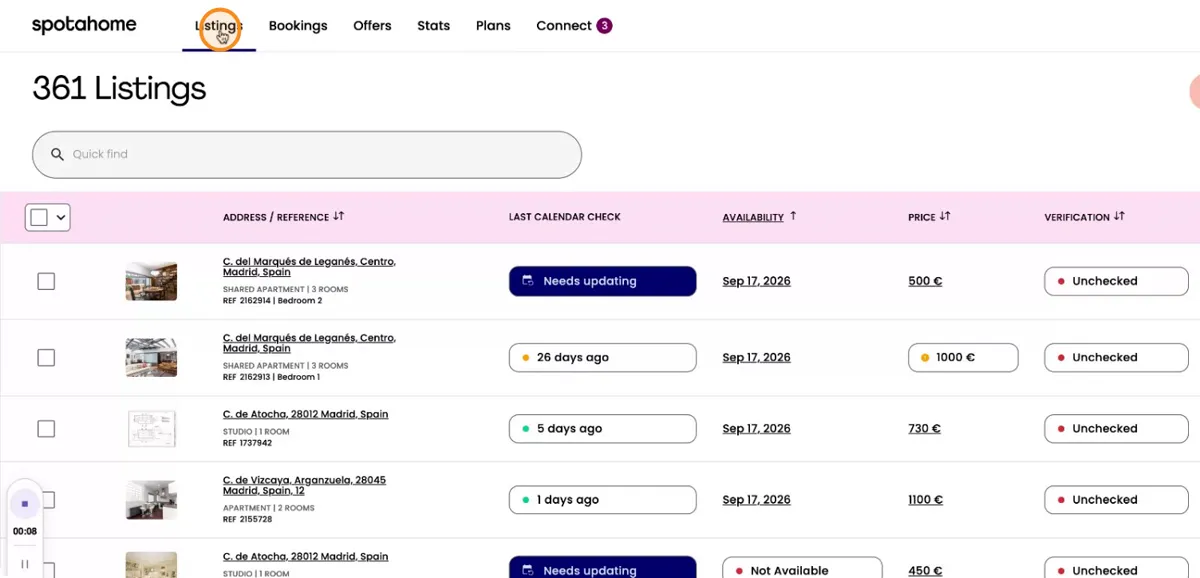
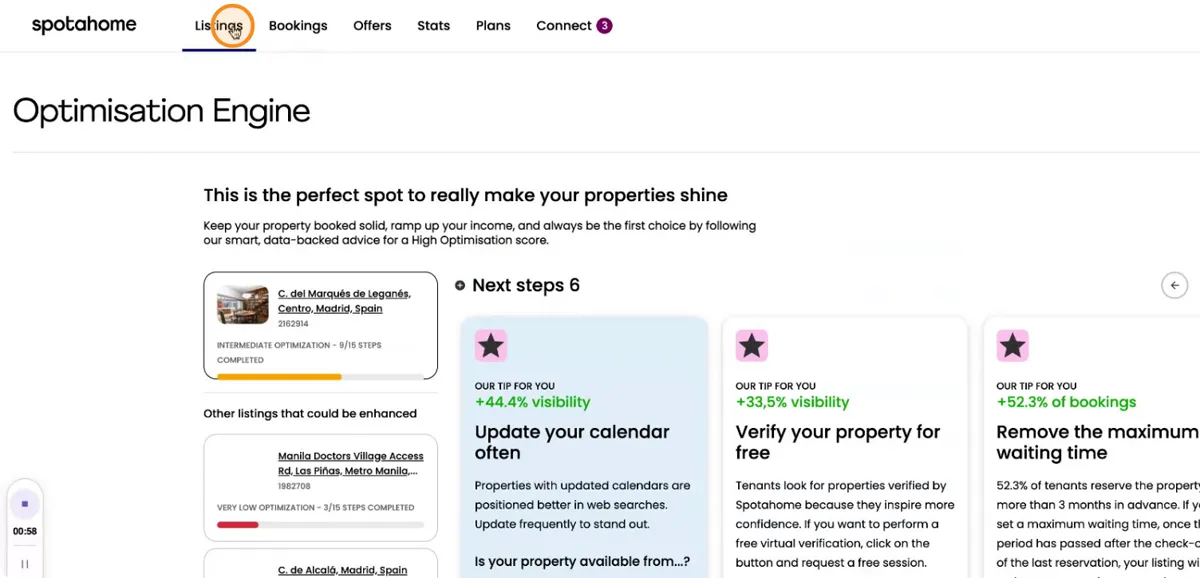
Access your property list in Listings
Start by going to the Listings section of your landlord panel. This is where you can see every property in your account in a single list.
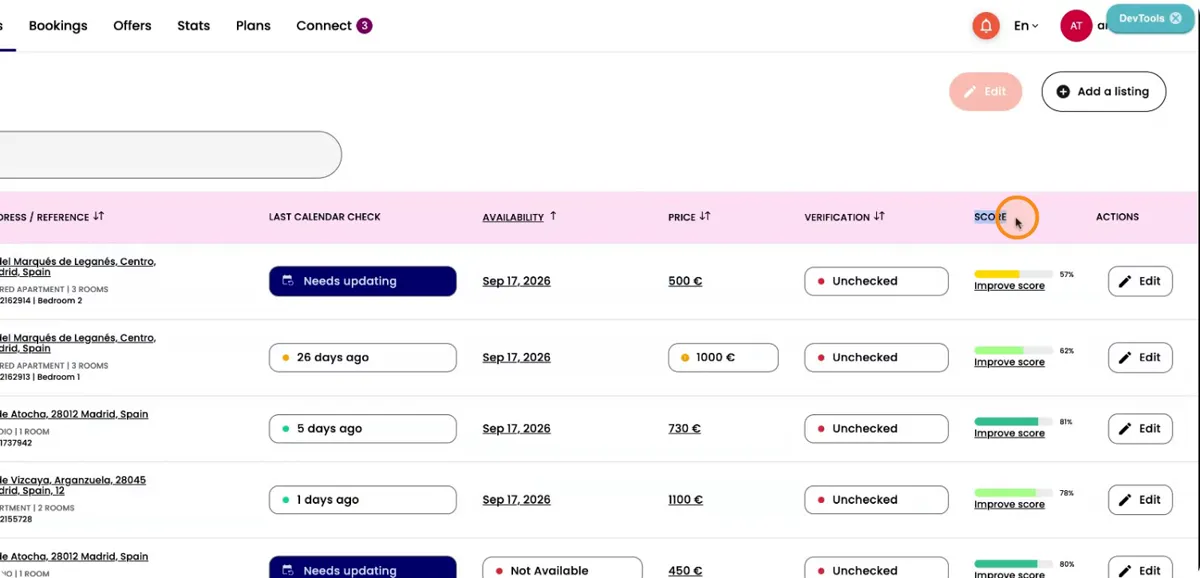
Review and improve your optimisation score
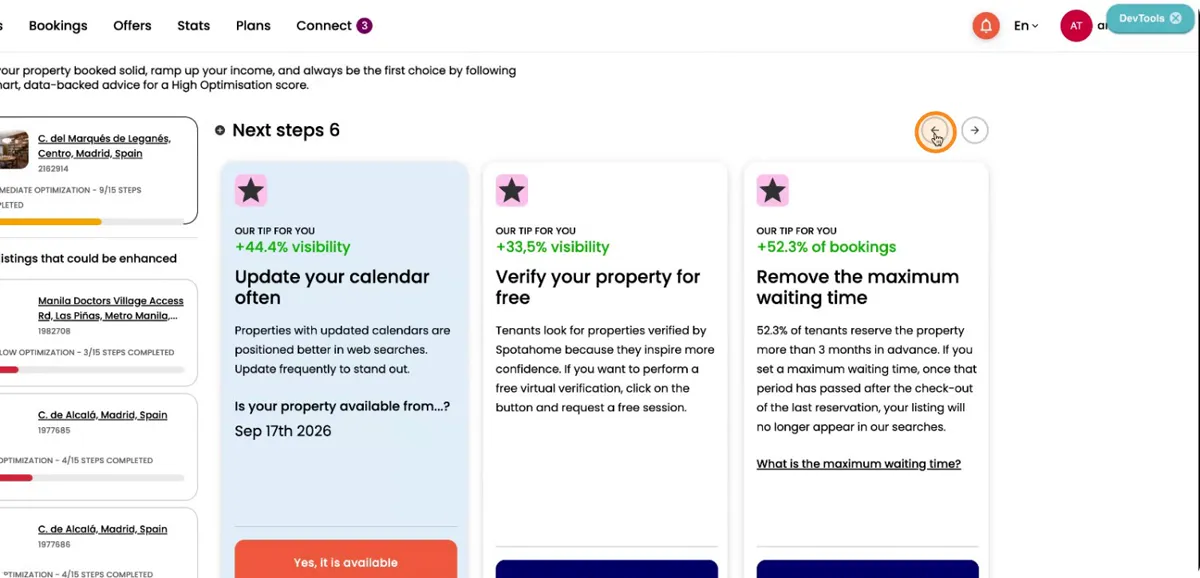
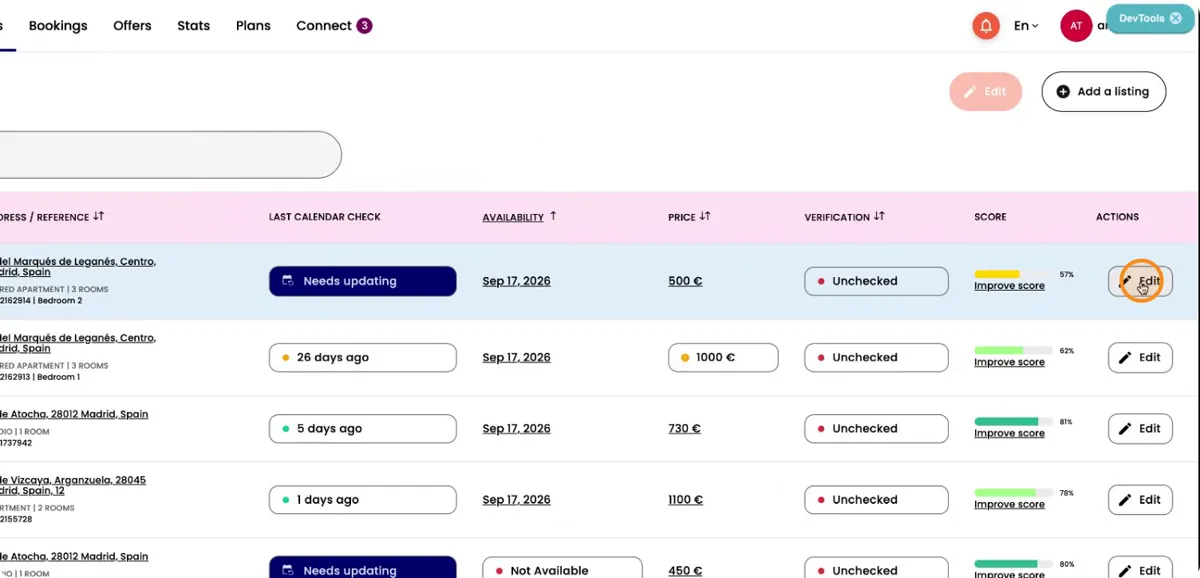
Look at the column on the right-hand side of the Listings page. This is where you see the optimisation score for each property, along with the possible actions you can take to improve visibility.
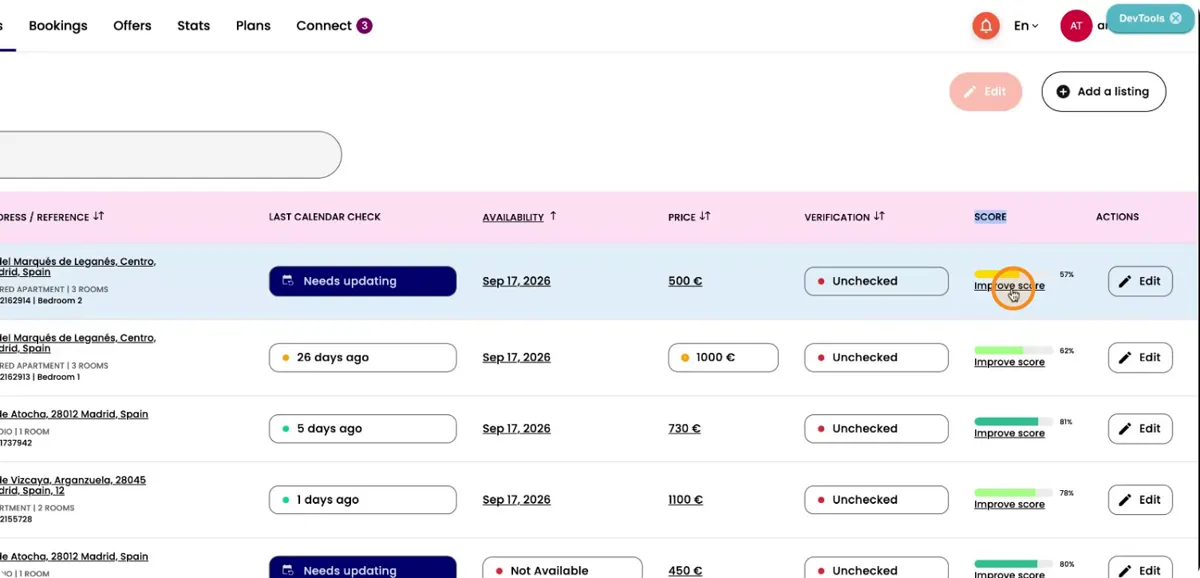
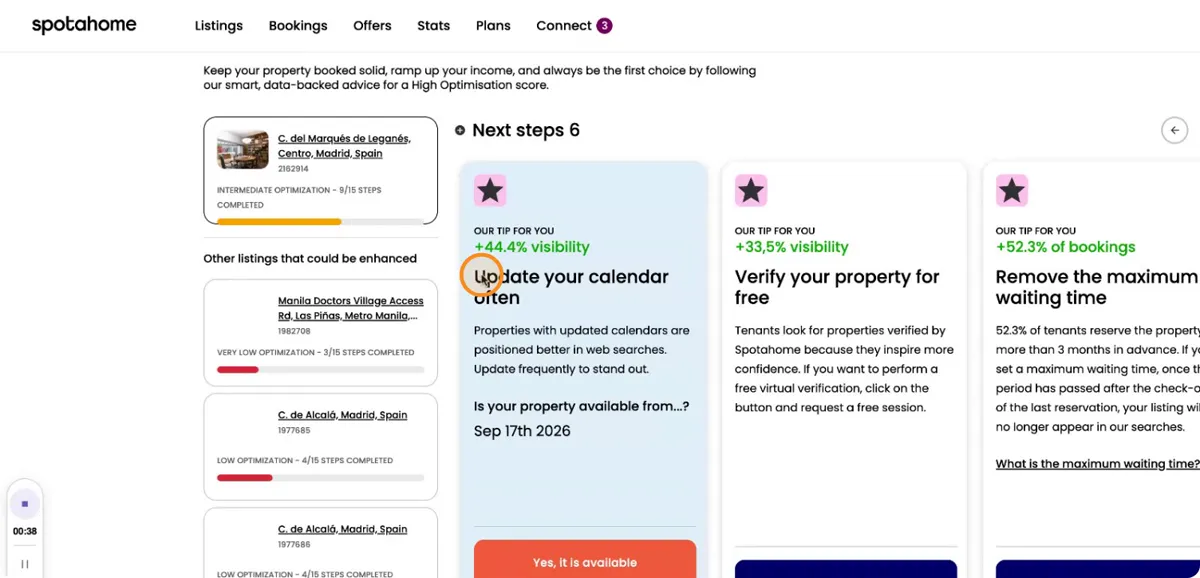
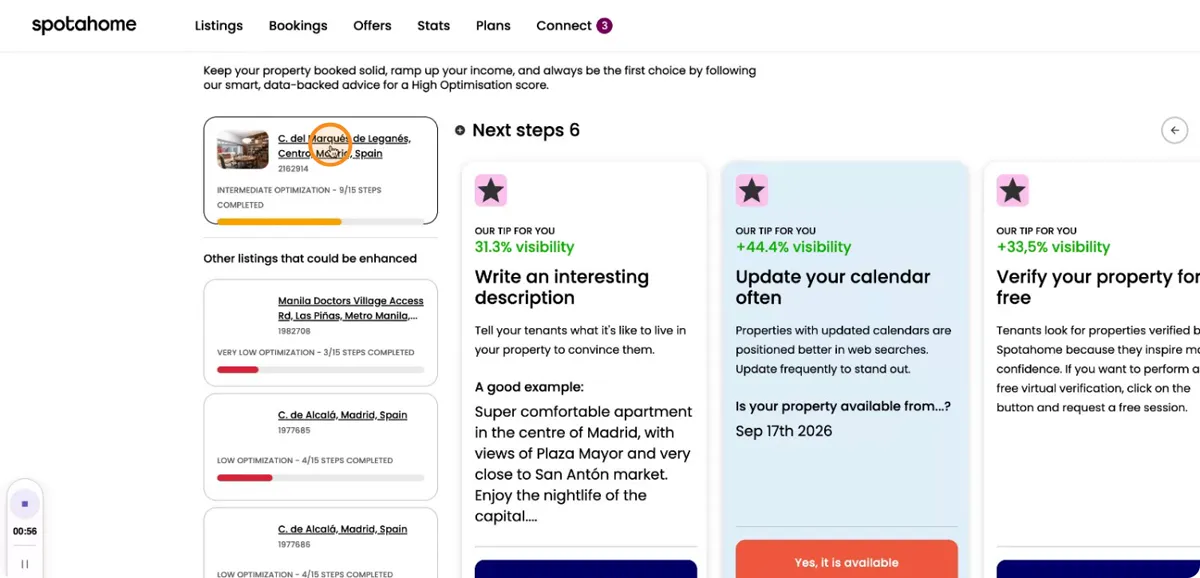
Click on Improve Score for the property you want to optimise. Here, you will see different suggestions that you can automatically apply to your listing to gain more visibility and attract the right tenants.
For example, you can update your calendar and availability, verify your property, or write an engaging and detailed description. You can, for example, focus on making the description interesting and clear. Select and apply the different suggestions to keep improving your listing.
Update rental price and deposit settings
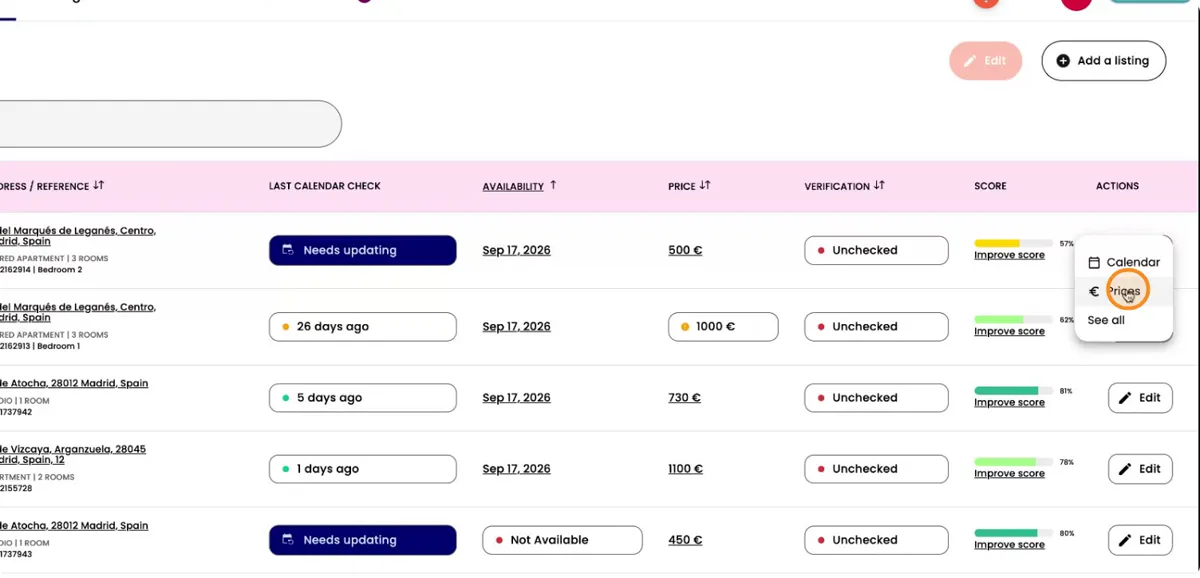
Also, if you go back to Listings, you can edit the price of your property.
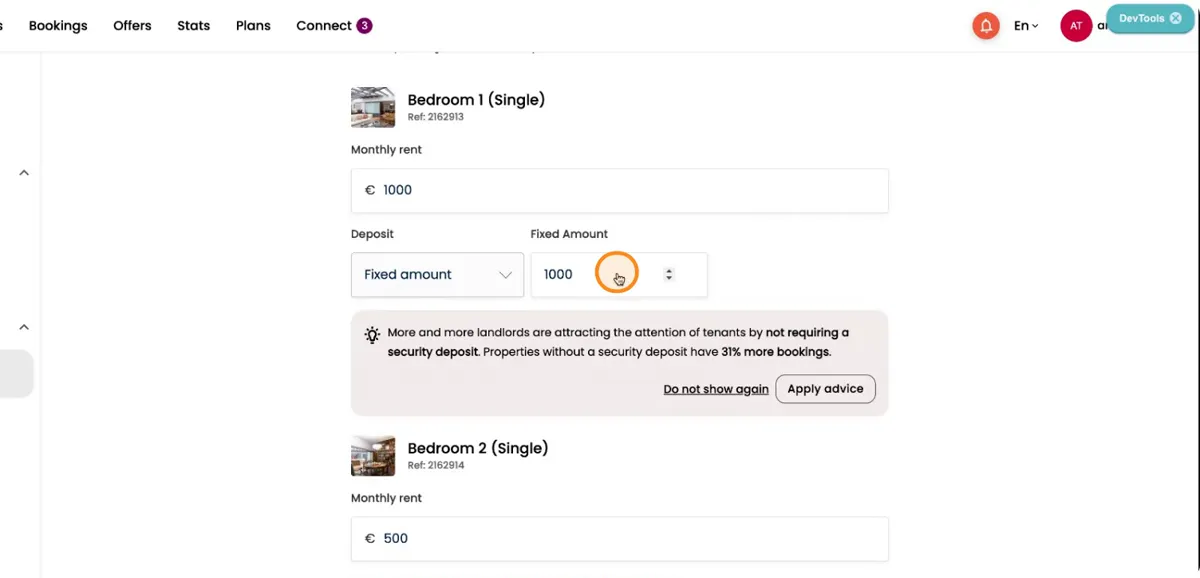
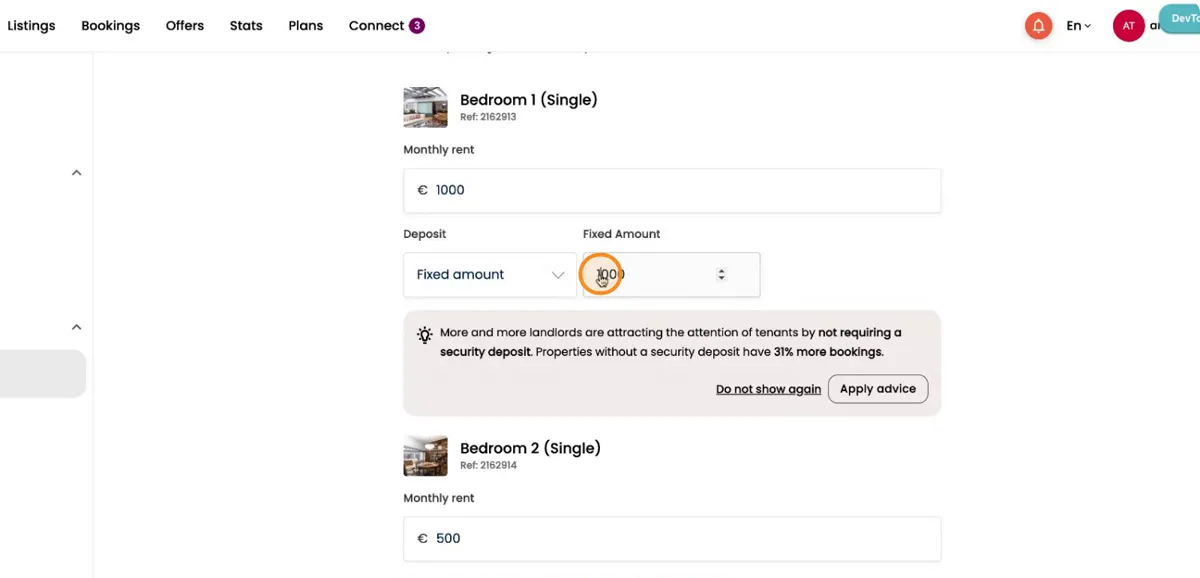
Here, you can directly adjust the rental prices. You can set or change your monthly rent and update it according to your preferred conditions.
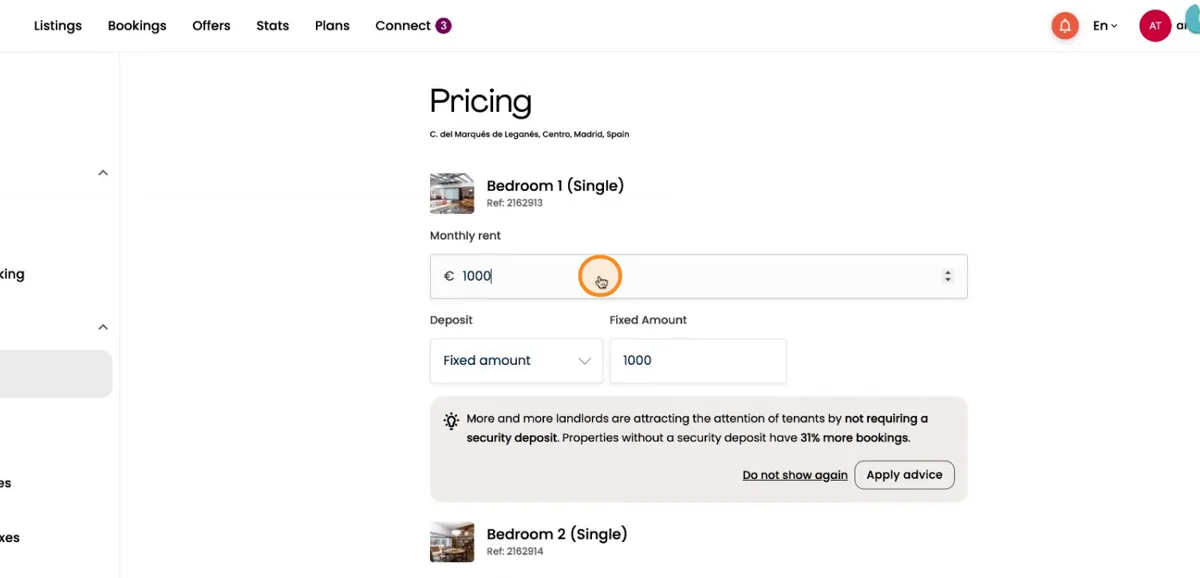
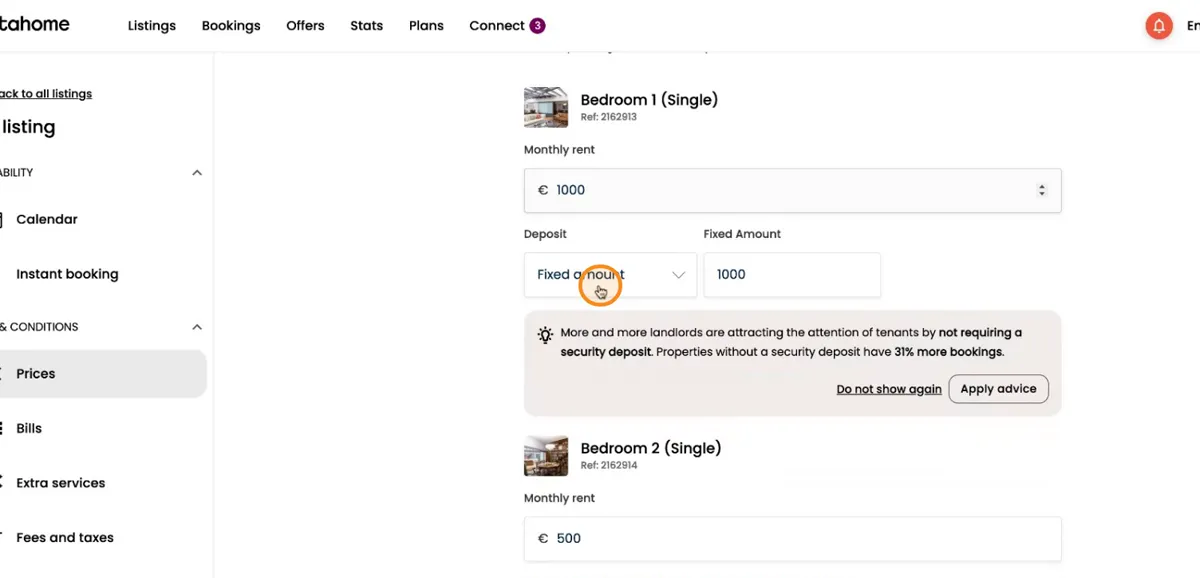
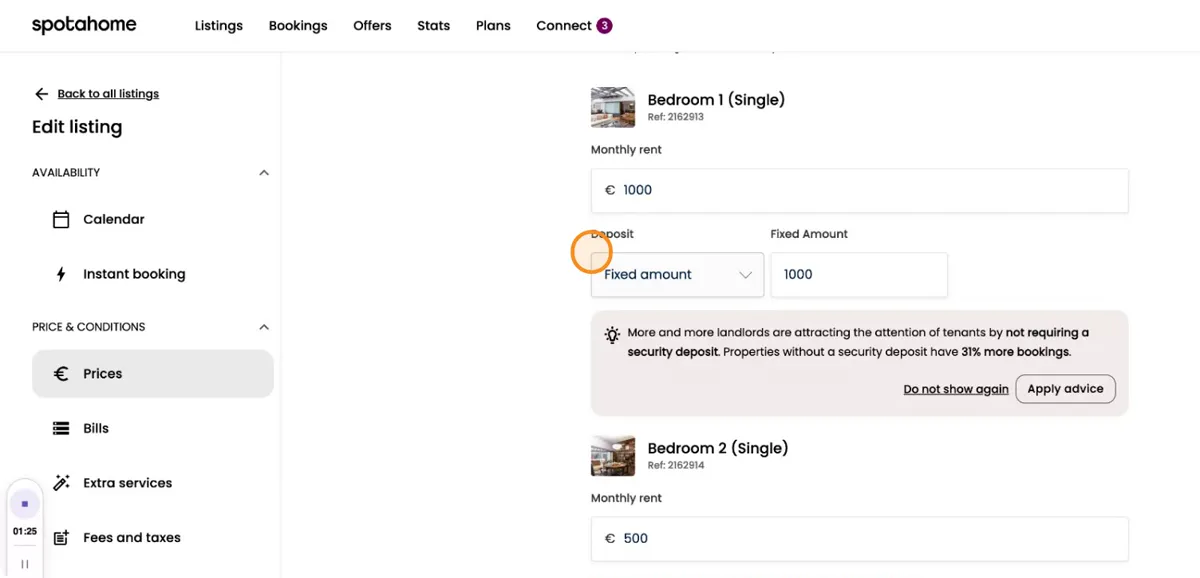
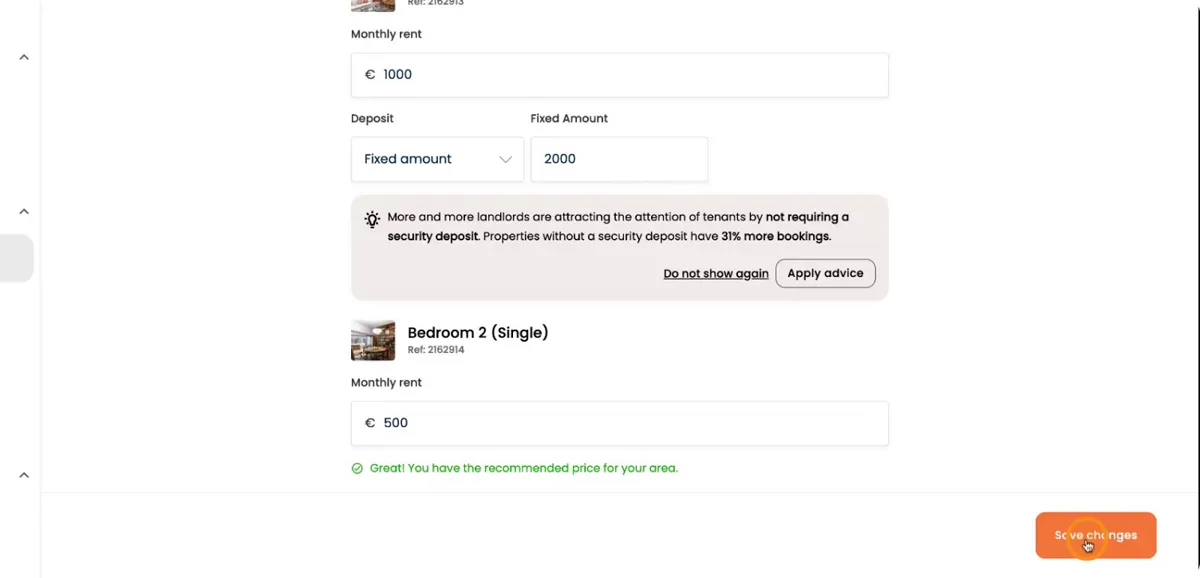
Then, go to the Deposit section. Here you can choose and configure the different options for your deposit (such as amount and conditions). And always click on Save Changes every time you update anything related to your deposit.
Configure included bills and extra services
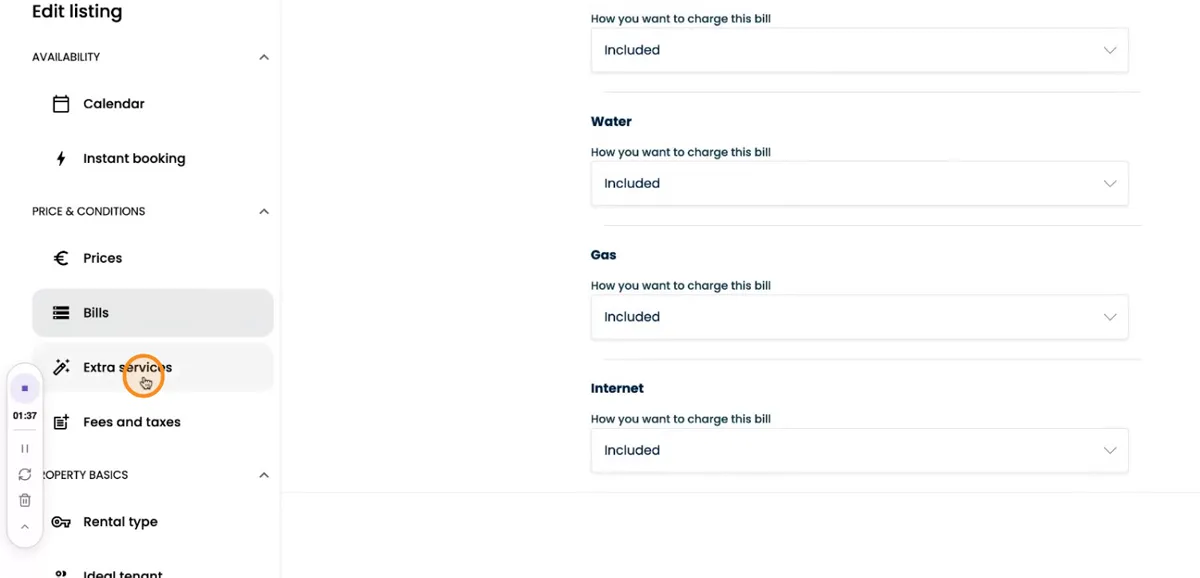
You can also update the different bills that are included in the rent (for example, utilities or internet).
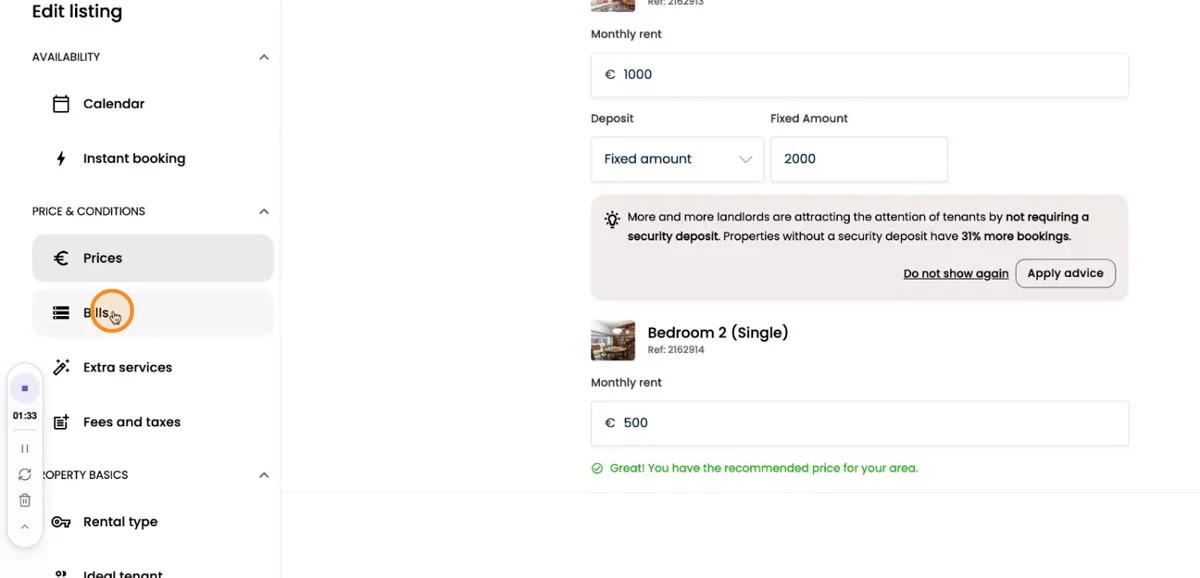
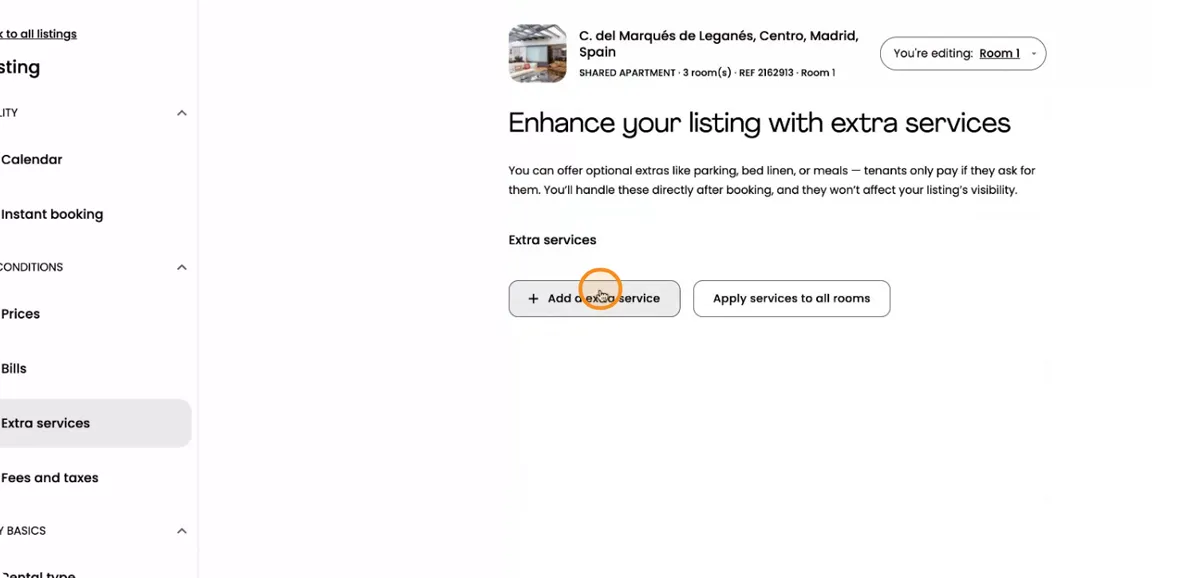
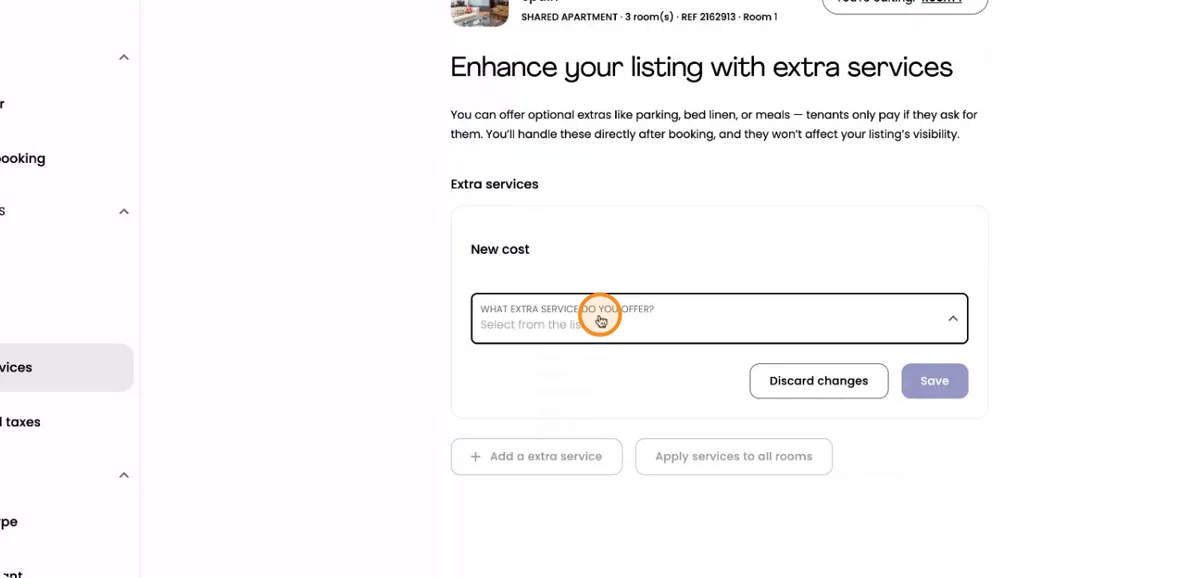
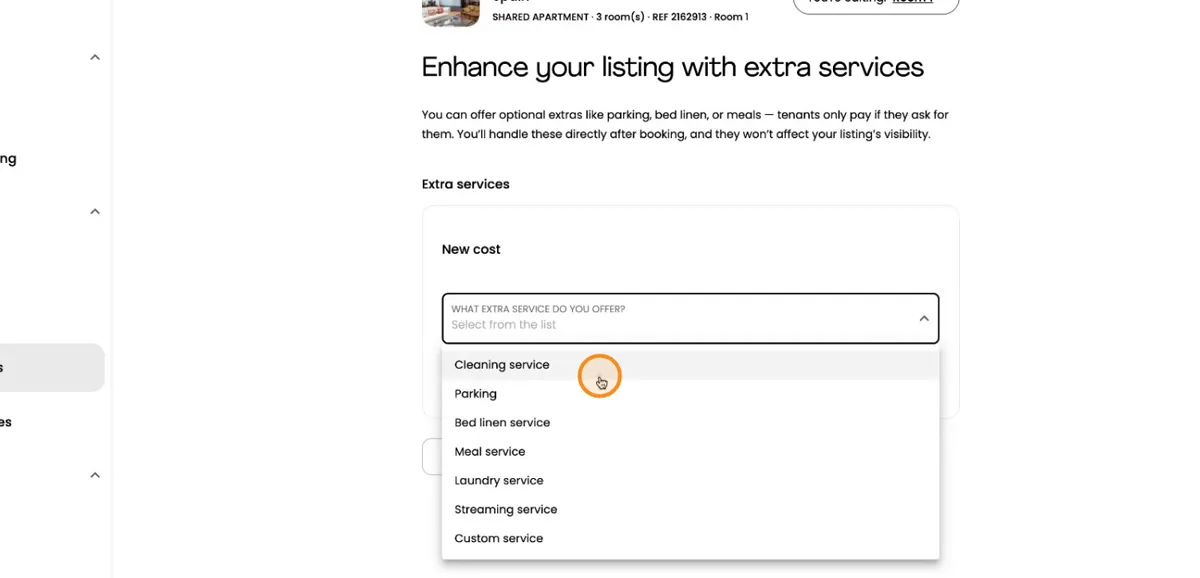
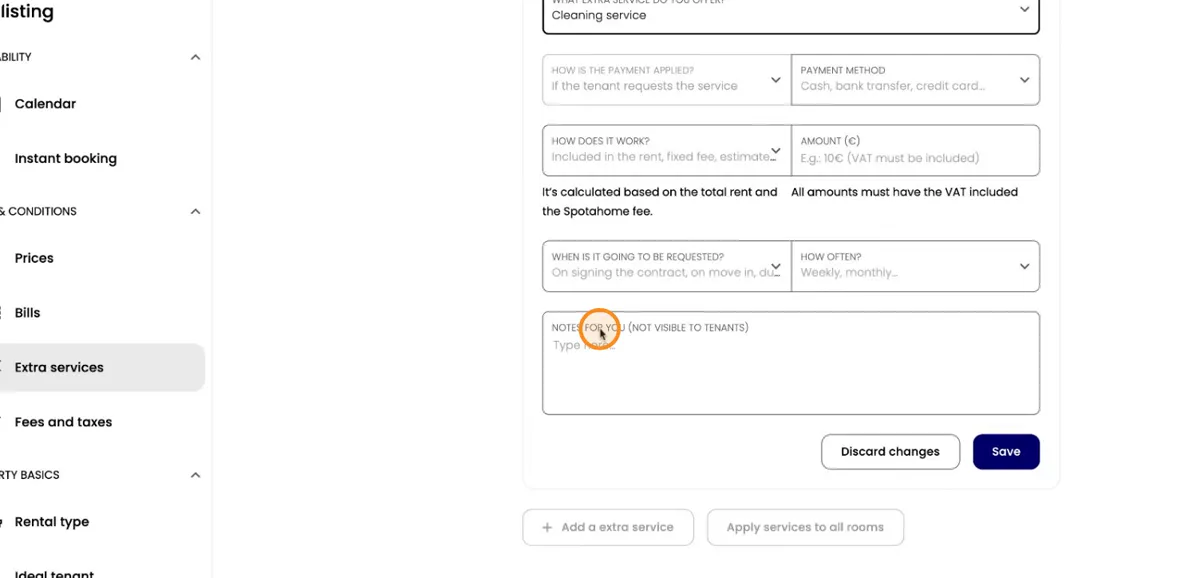
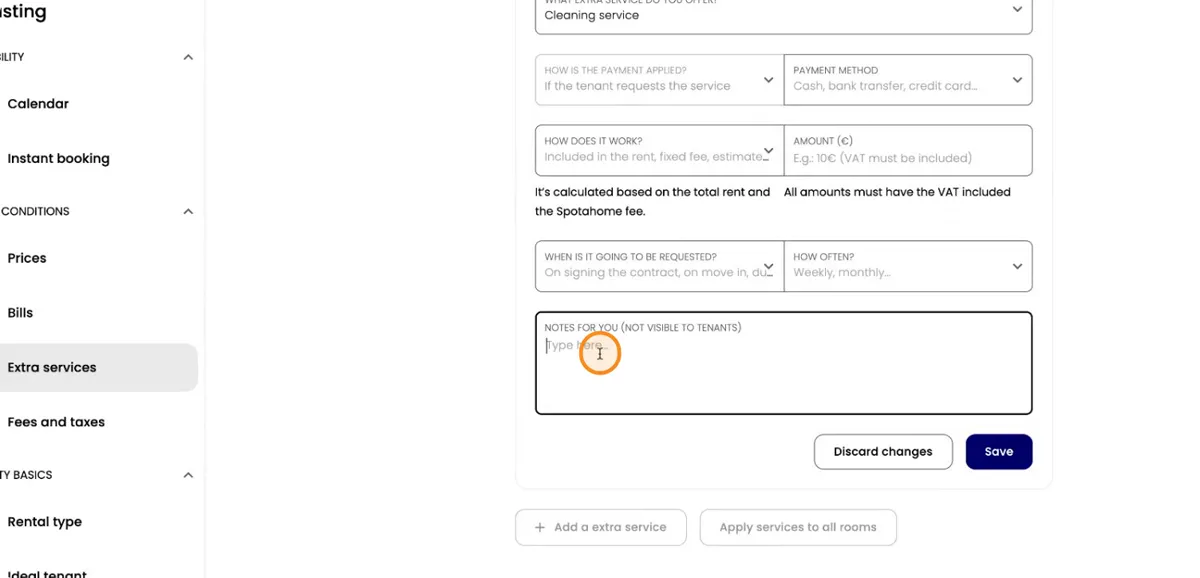
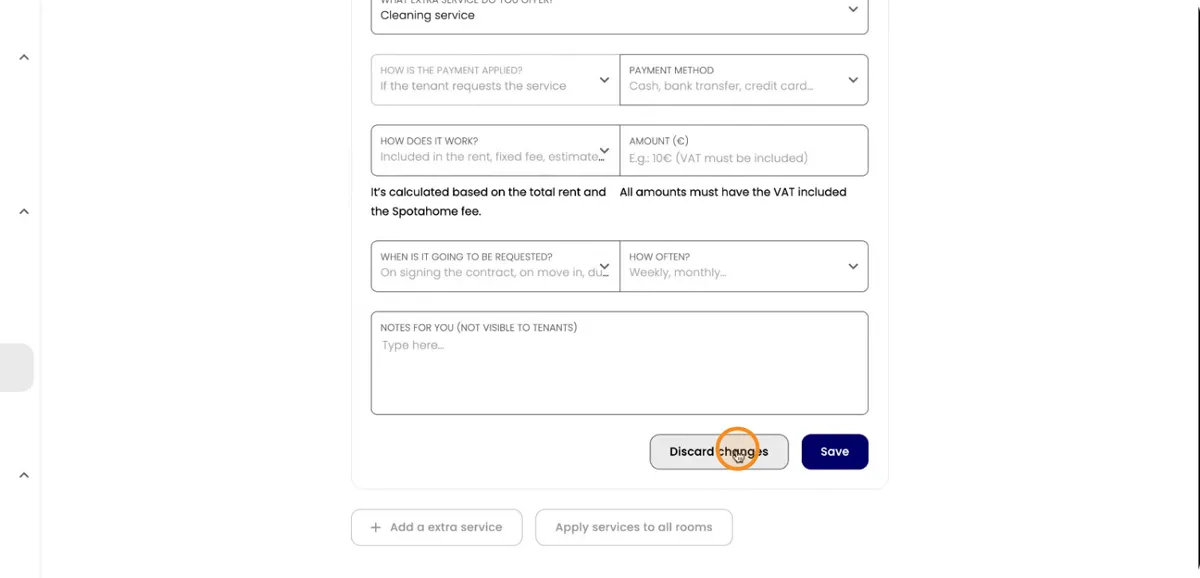
You can also add different extra services that you would like to offer, such as cleaning, meal plans, or laundry services. Specify each service and fill in the cost and the description so tenants clearly understand what is being offered.
Define your ideal tenant profile
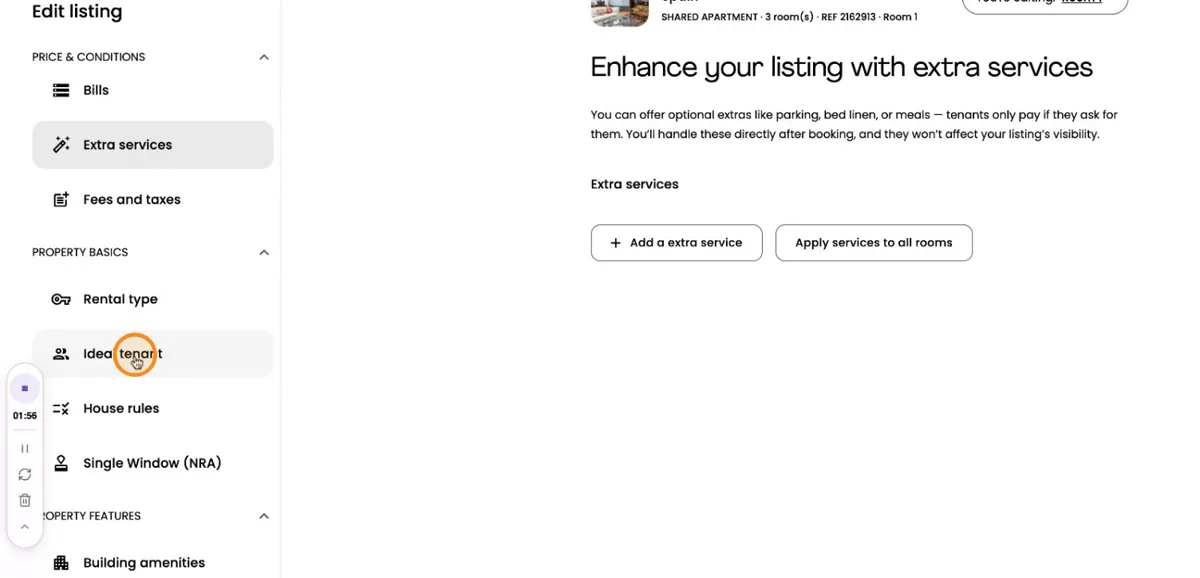
Also, you can go to the Ideal Tenant section. Here you can select the different characteristics you are looking for in your tenants, such as lifestyle preferences.
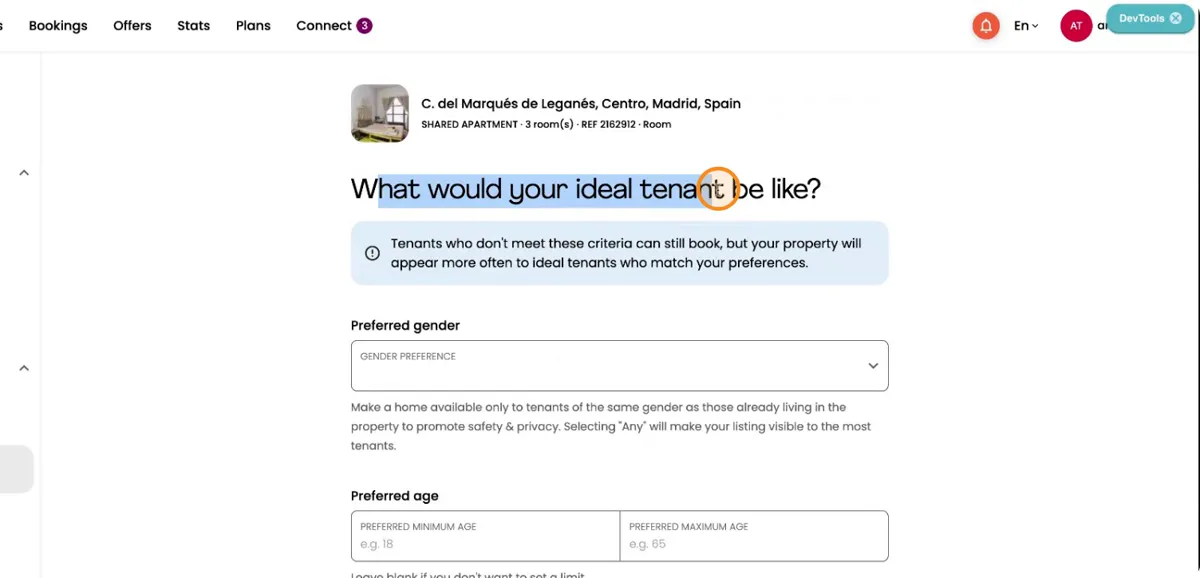
Remember to complete all the relevant options so that the booking requests you receive are aligned with the type of tenants you want and need.
Set house rules, required documents, and contractual permissions
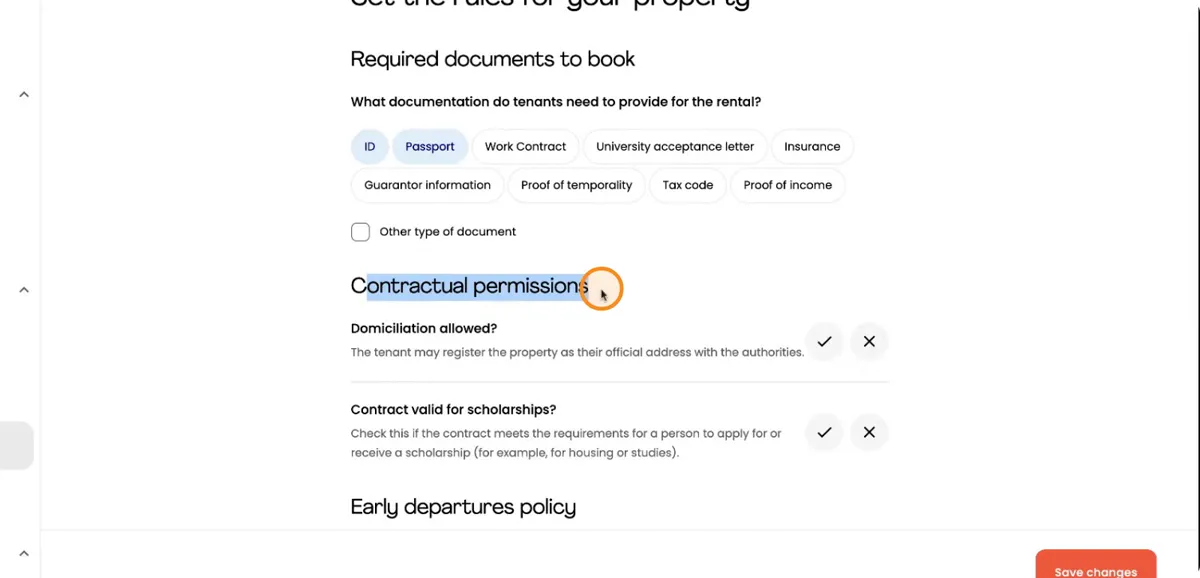
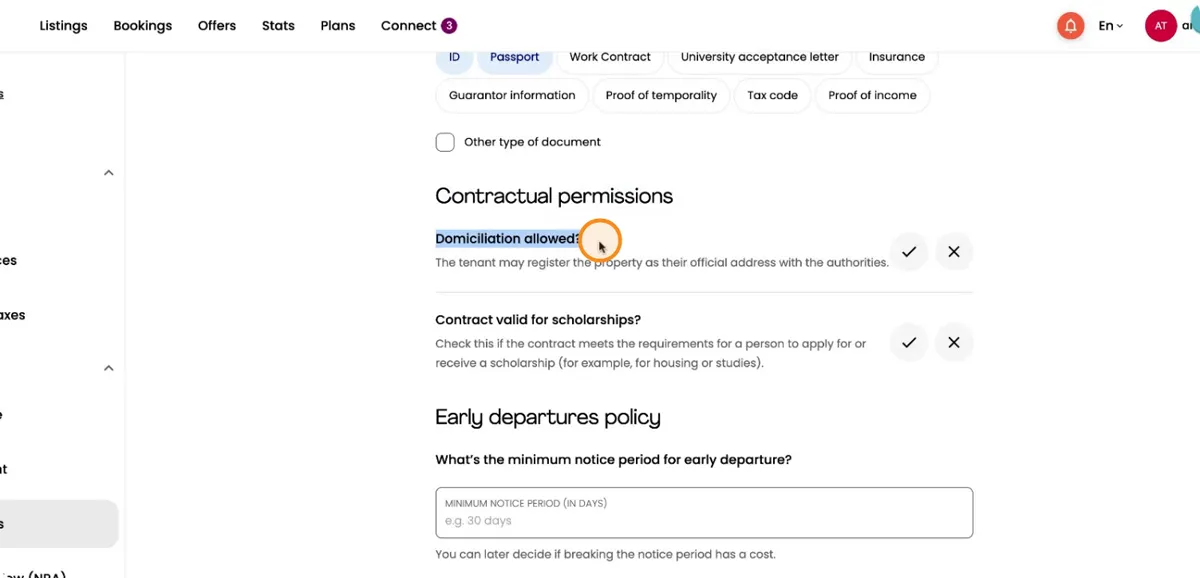
You can go to House Rules to define what is required before someone can book your property. Specify all documents you need, such as an ID card, passport, and any other requirements you may have.
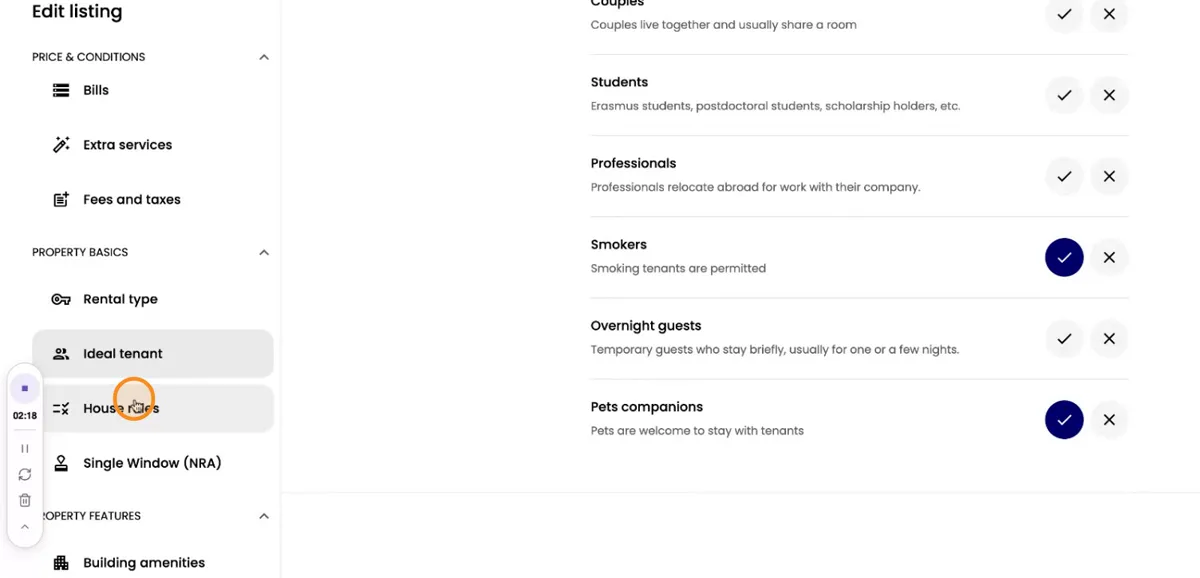
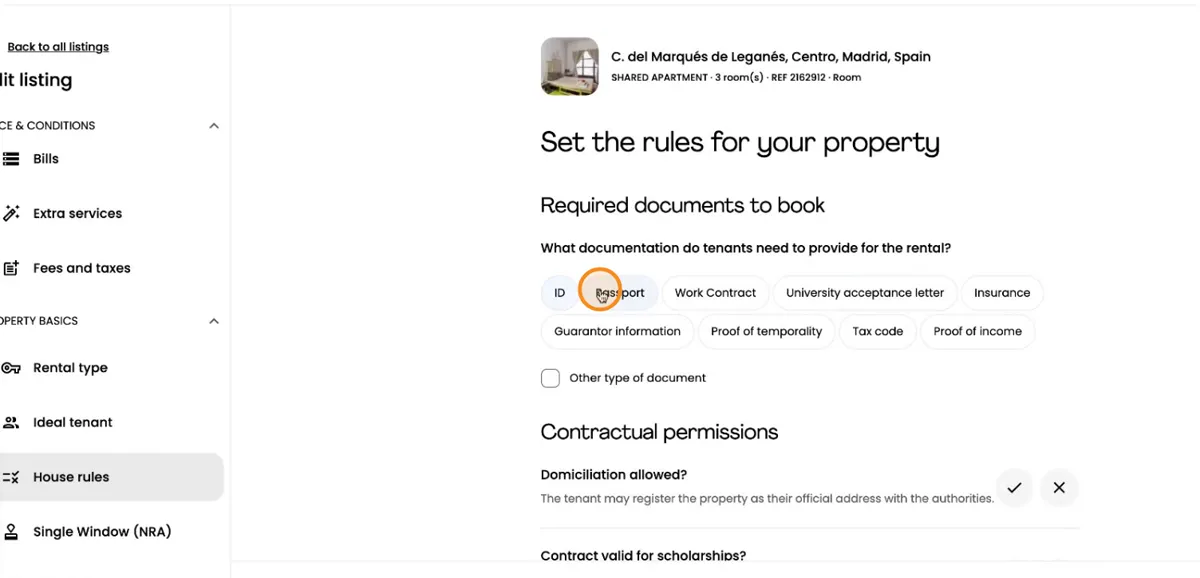
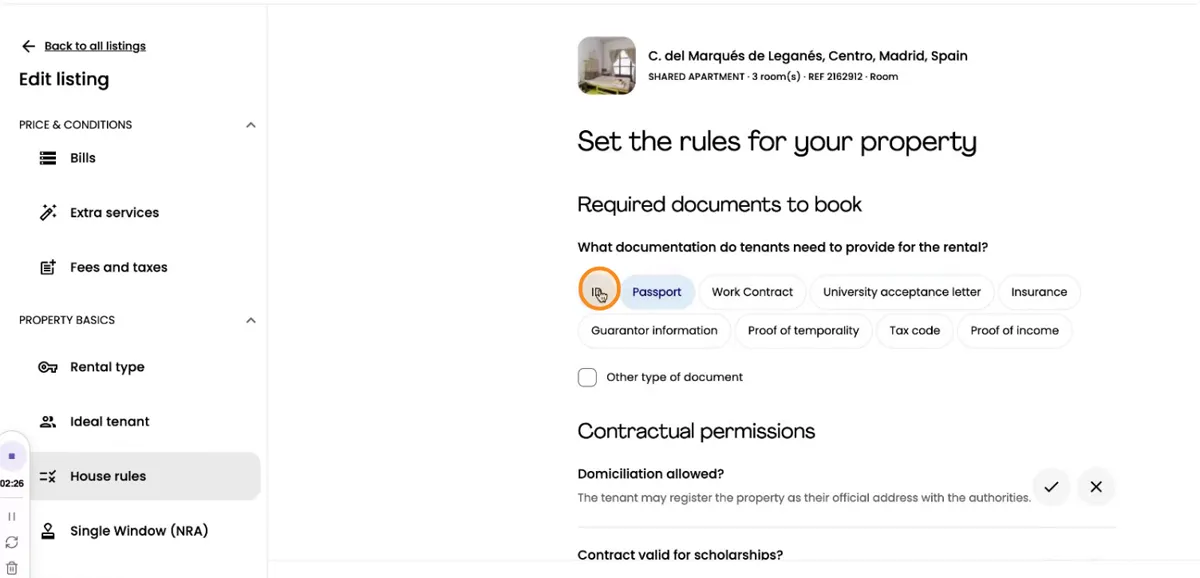
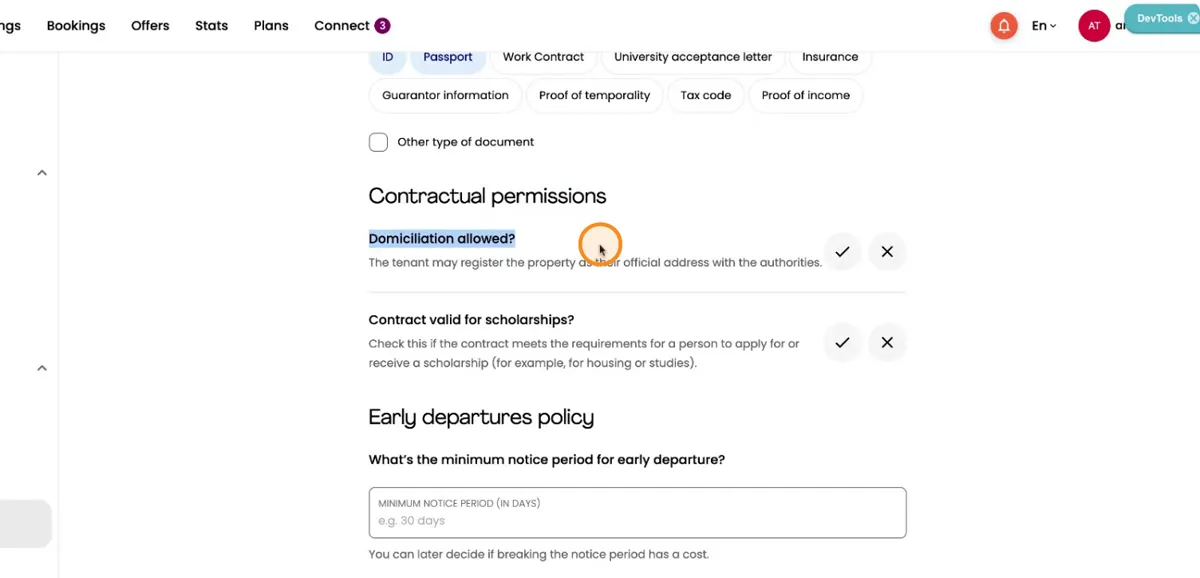
Next, choose all the contractual permissions that you offer. For example, indicate if you allow domiciliation or if your property is valid for scholarships. Also define any early departure policy or other contractual conditions that apply to your listing. Remember to save your changes regularly.
Update property features, amenities, and descriptions
You can also go to Property Features to review and update the key characteristics of your property. After editing, make sure to Save changes.
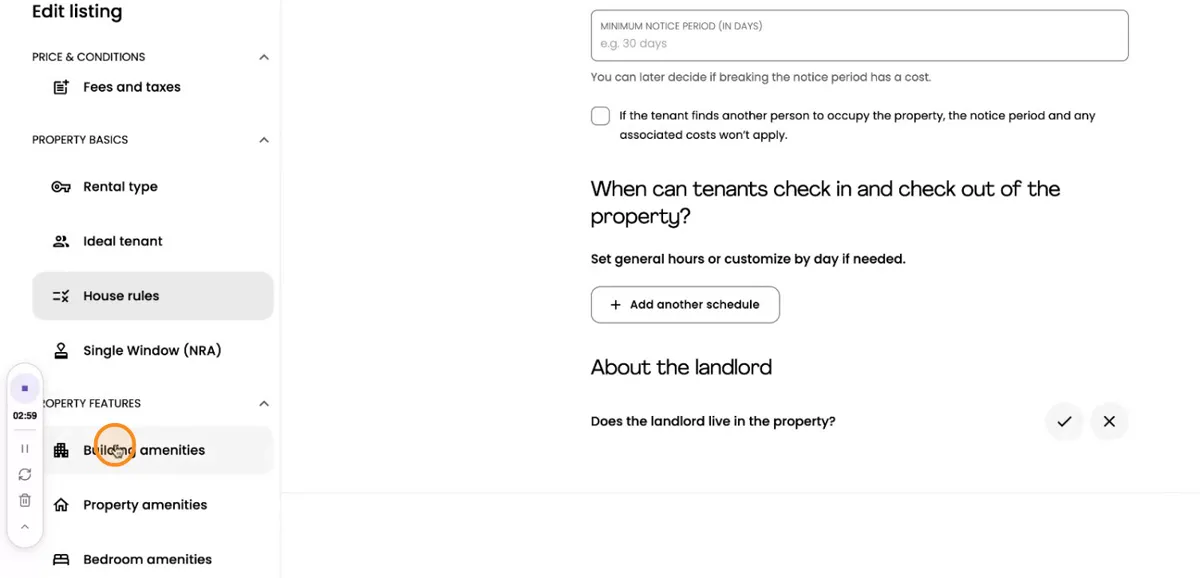
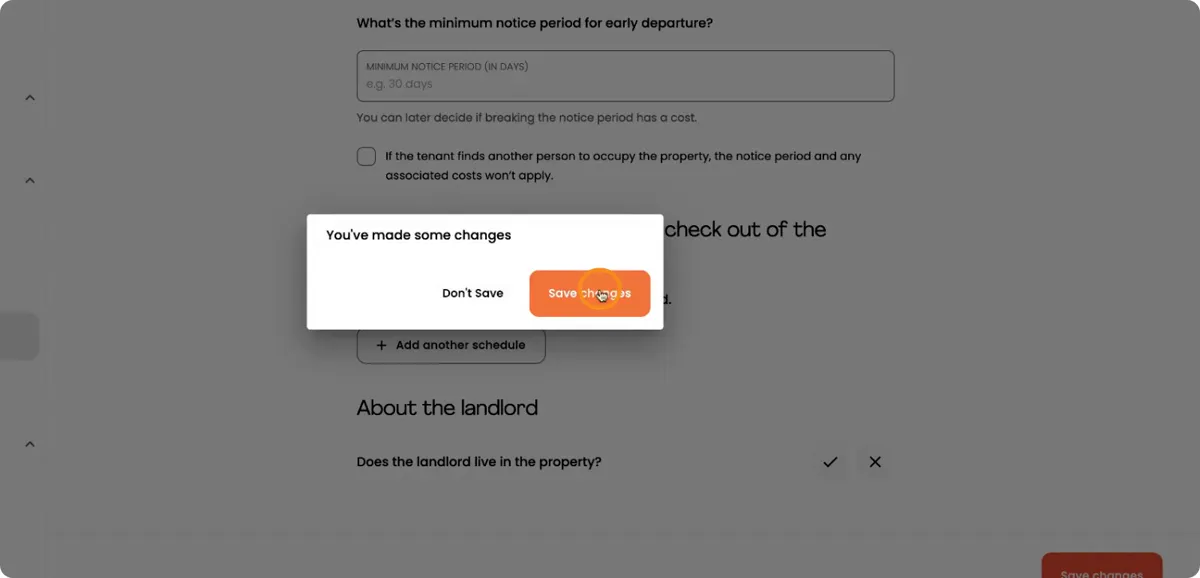
You can then go to the Building Options section to specify which building features you offer. Also, you can go to the Property Amenities to change or add any amenities or conditions, such as furniture, appliances, or shared facilities.
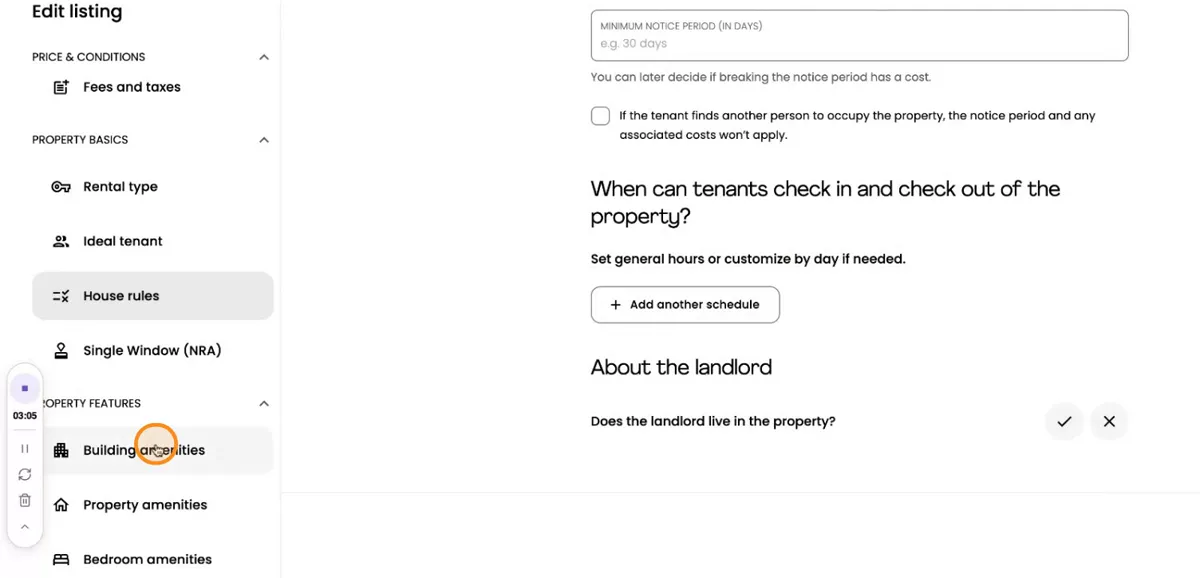
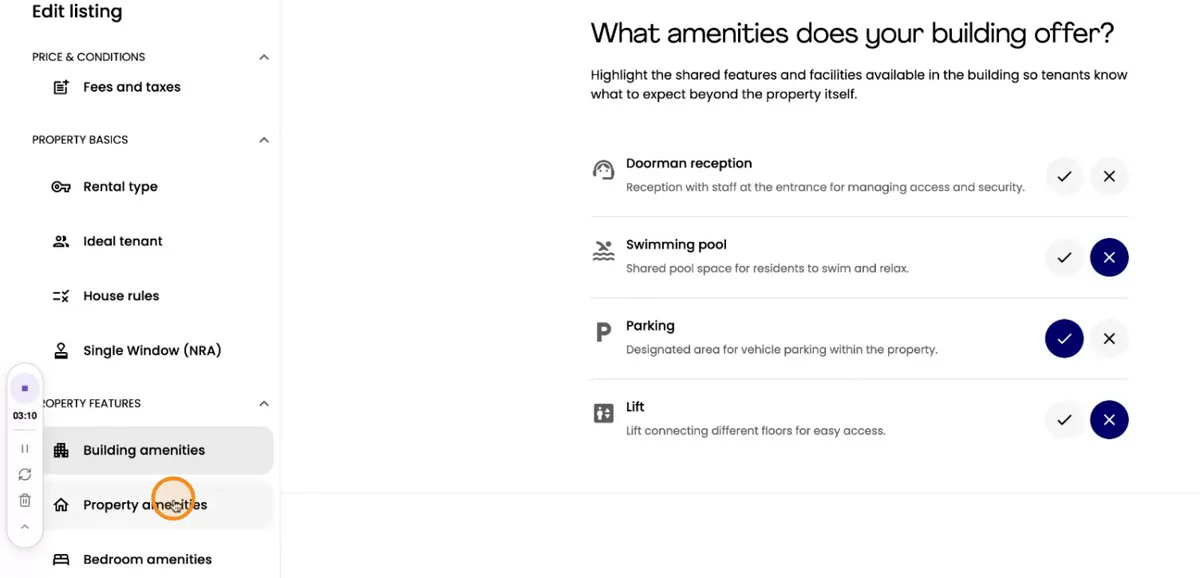
Update information on Energy Systems and Bedroom Amenities as needed. It’s very important to describe your property accurately and thoroughly.
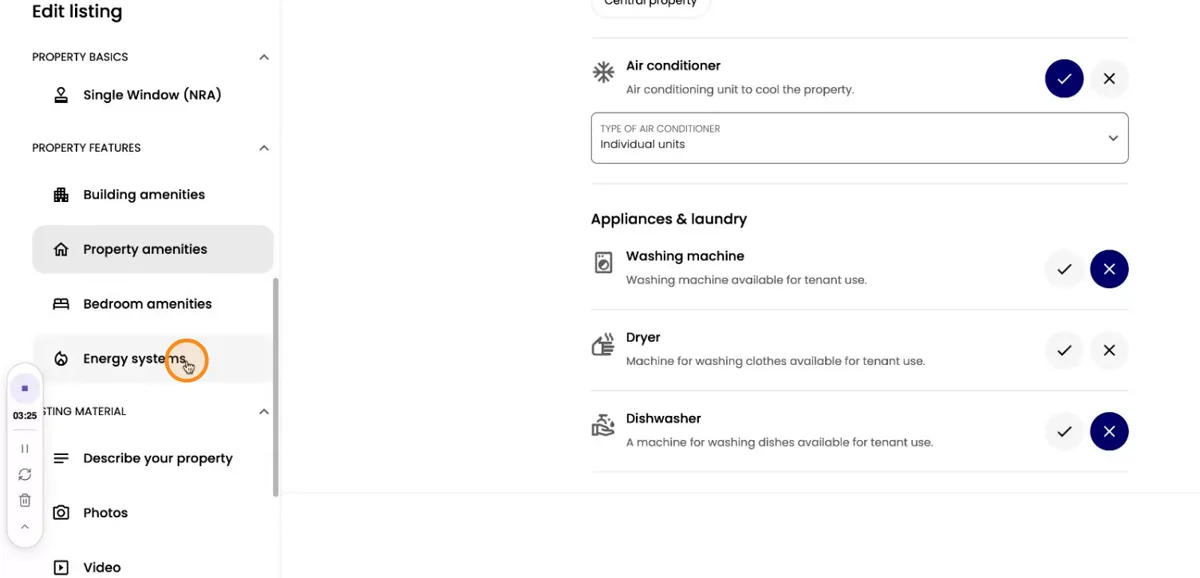
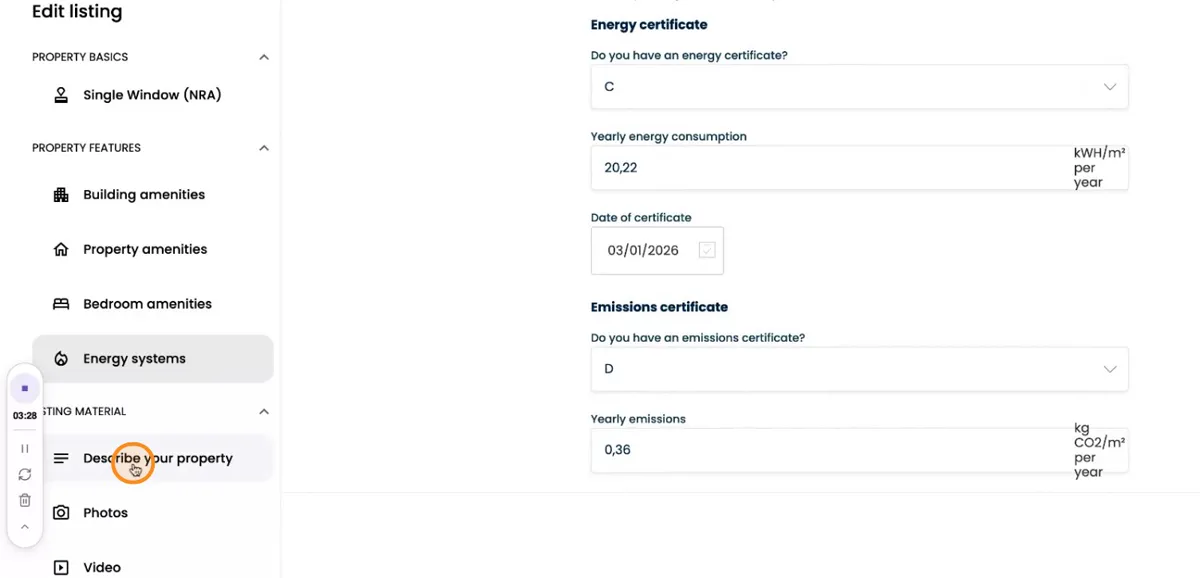
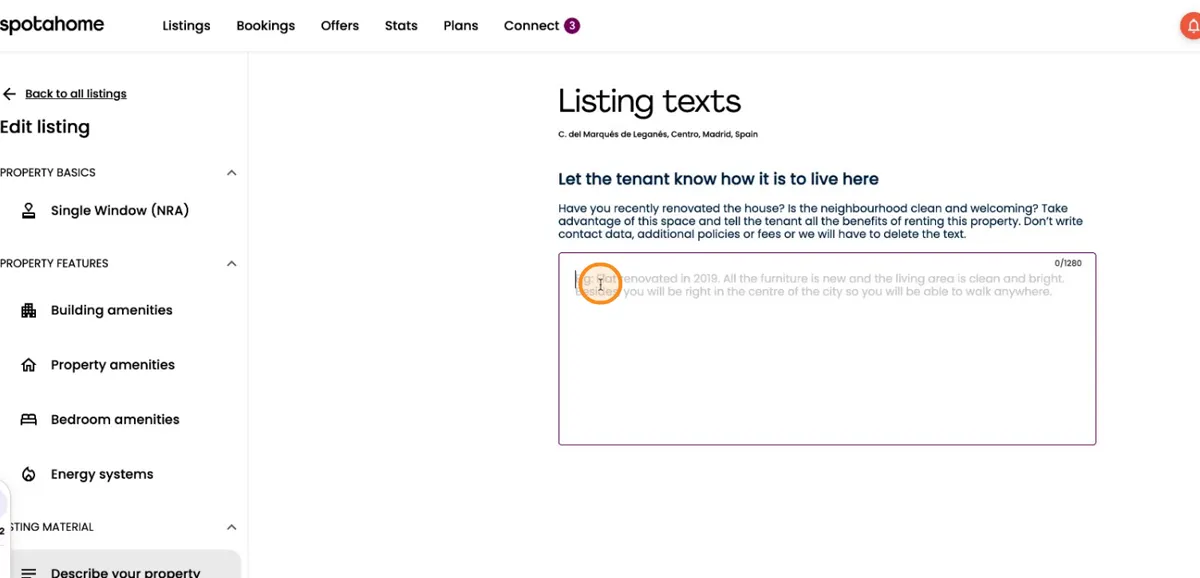
You can add a description of the neighbourhood, nearby universities, and other local points of interest. Use the larger description space to indicate whether the property is fully renovated and to highlight anything else that is valuable for tenants to know. Detailed information here helps tenants make informed decisions.
Keep your bank and legal details up to date
A very important part also is to keep your bank details up to date so you can receive payments without issues.
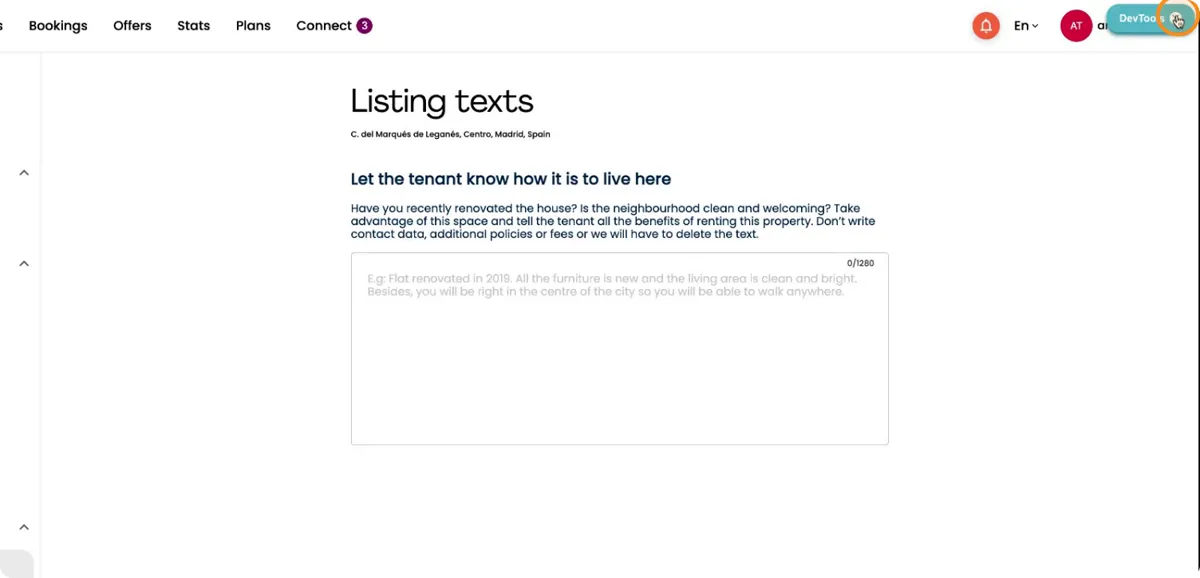
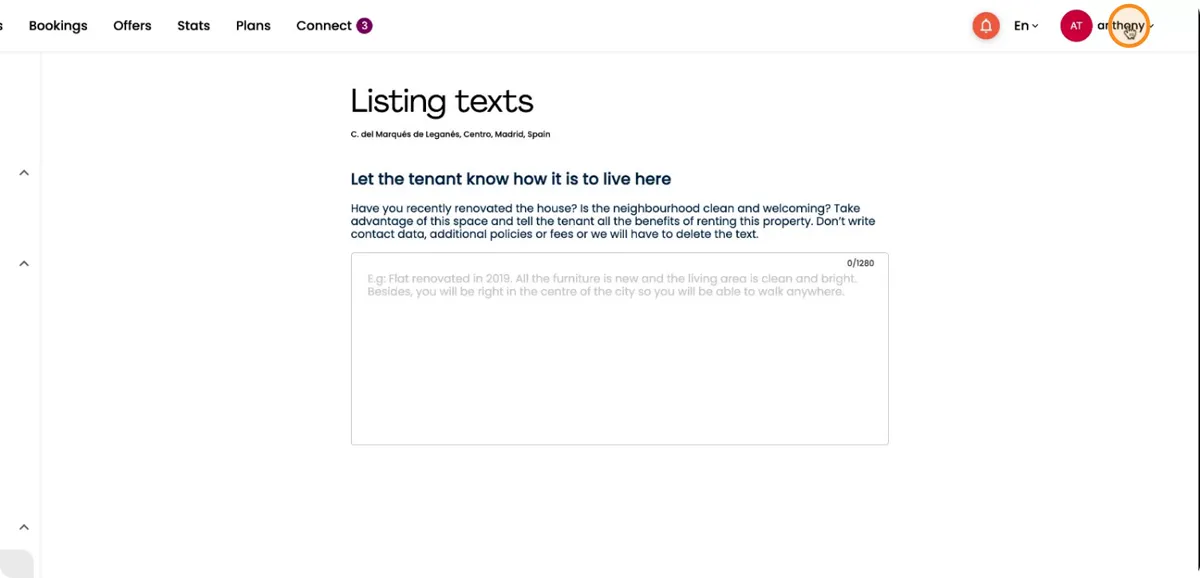
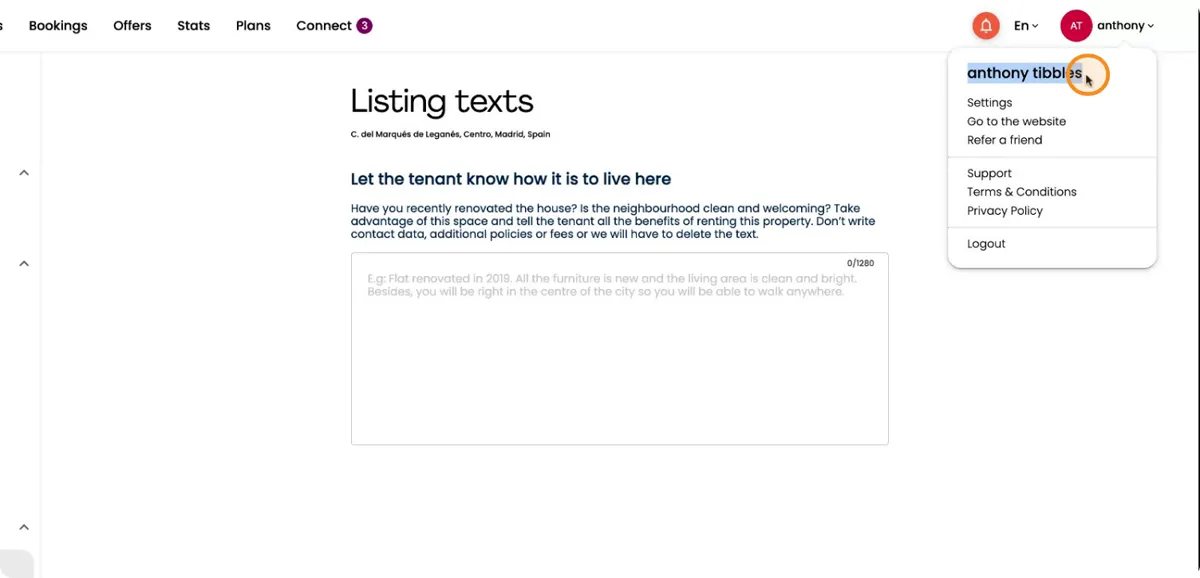
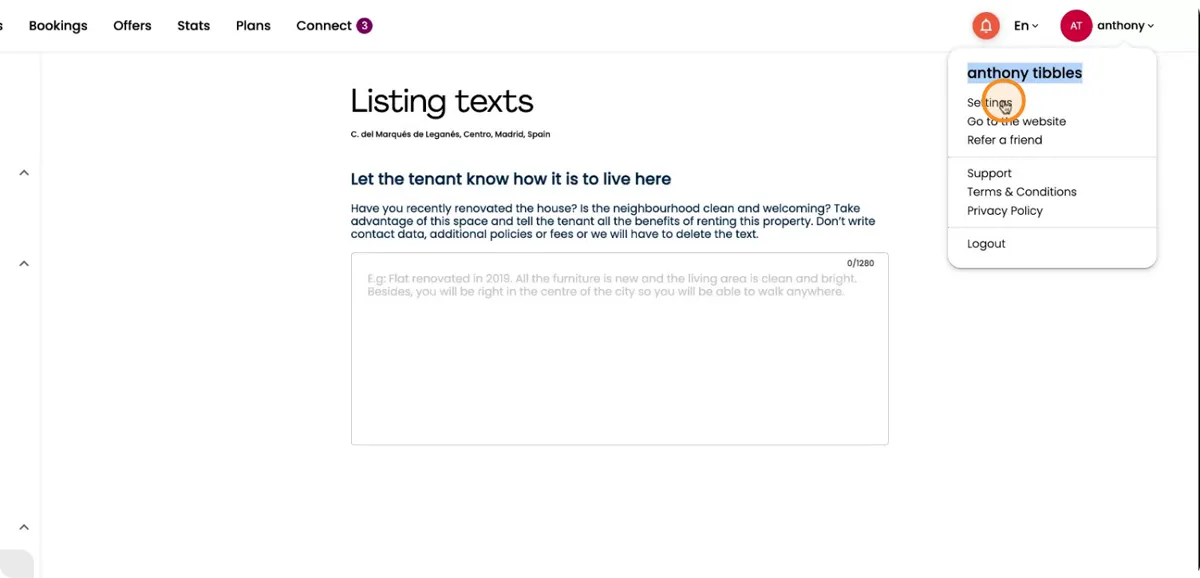
To update your bank details, go to your Account menu in the corner of the screen, then click on Settings. And always ensure your bank account information and all required legal details are current and accurate. Remember to save your changes every time you update anything.
Ready to make changes?
Everything in this walkthrough lives in one place.