Managing booking requests on Spotahome
This guide explains how you can use your Spotahome landlord panel to review and accept booking requests, decline them, or suggest changes to the dates and price before confirming.
Prefer to read? The full written guide follows below the video.
Log into your landlord panel and go to bookings
Head over to your Spotahome landlord panel and open up the “Bookings” section. Here you’ll see all your pending, upcoming, cancelled or past bookings. Find and select the booking request you want to manage for a particular property.
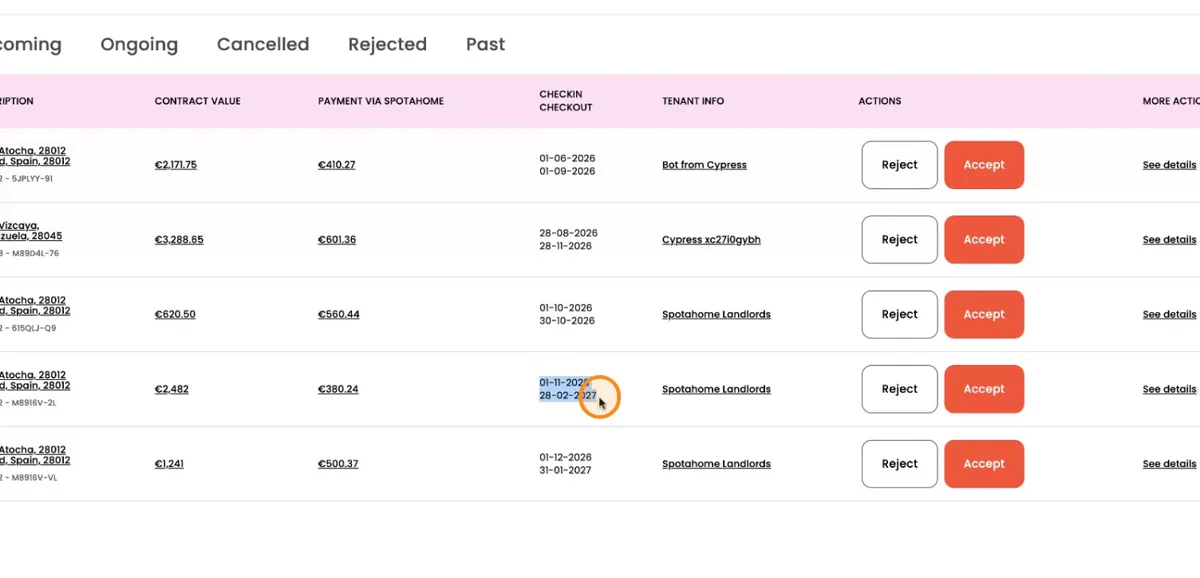
Check the calendar for availability
Before you accept a booking, double-check that the requested dates are truly free for your property and that your calendar is up to date, with no mistakes or double-bookings.
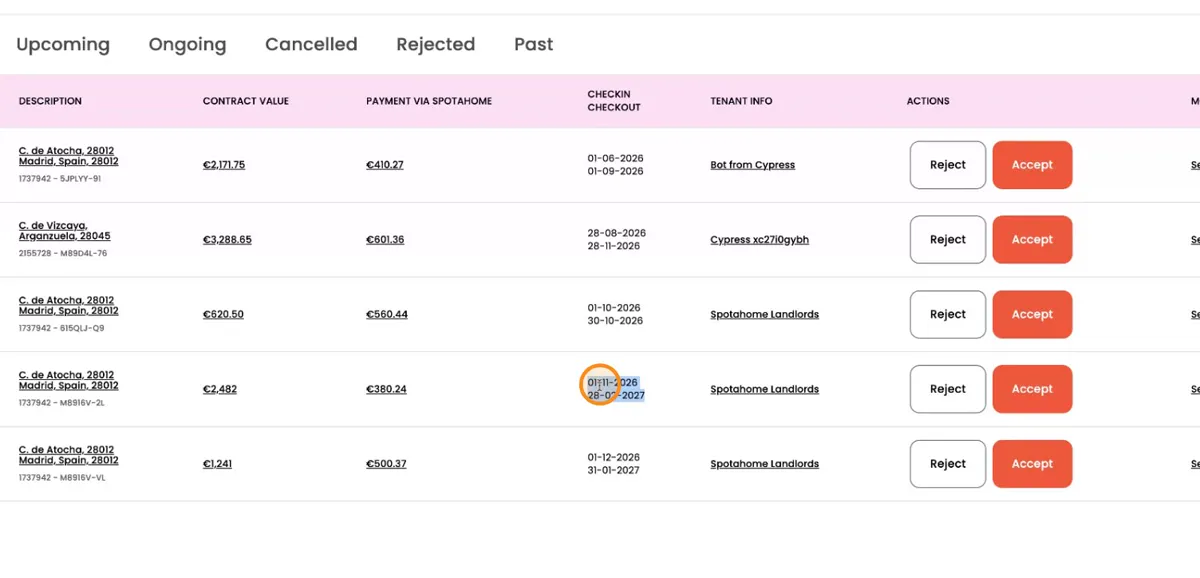
Open the request and check the tenant’s profile
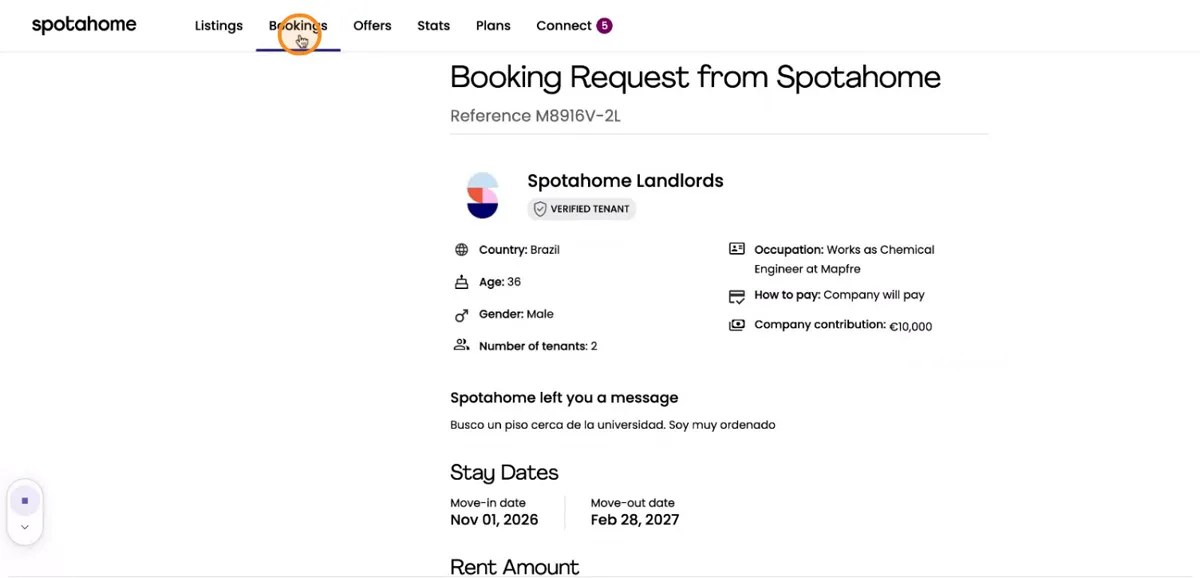
Click into the booking request you’ve chosen.
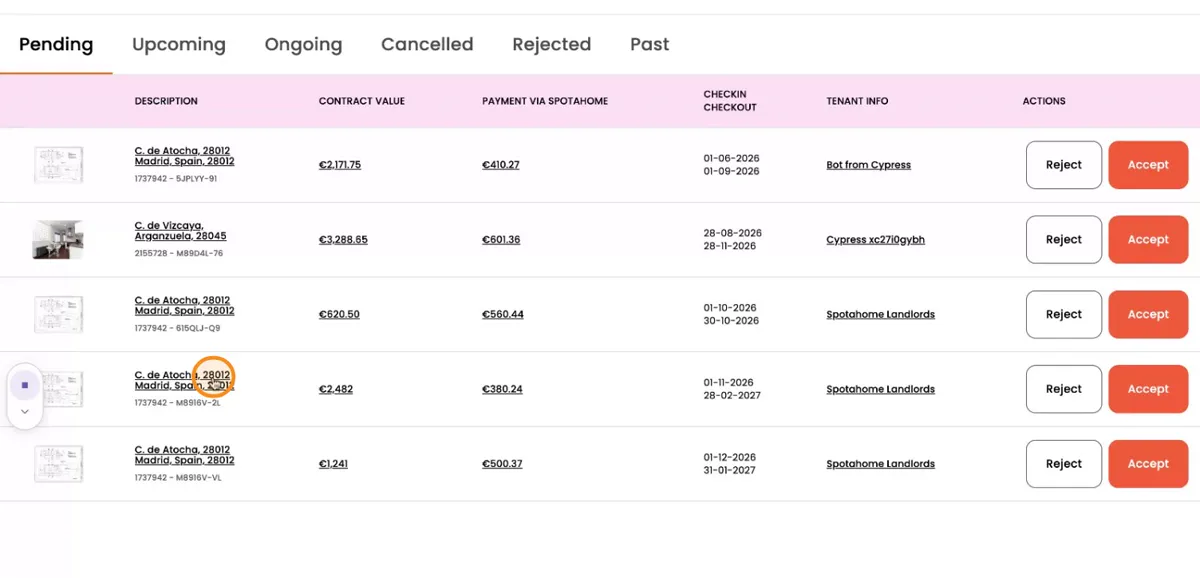
Read through the details and take a good look at the tenant’s profile.
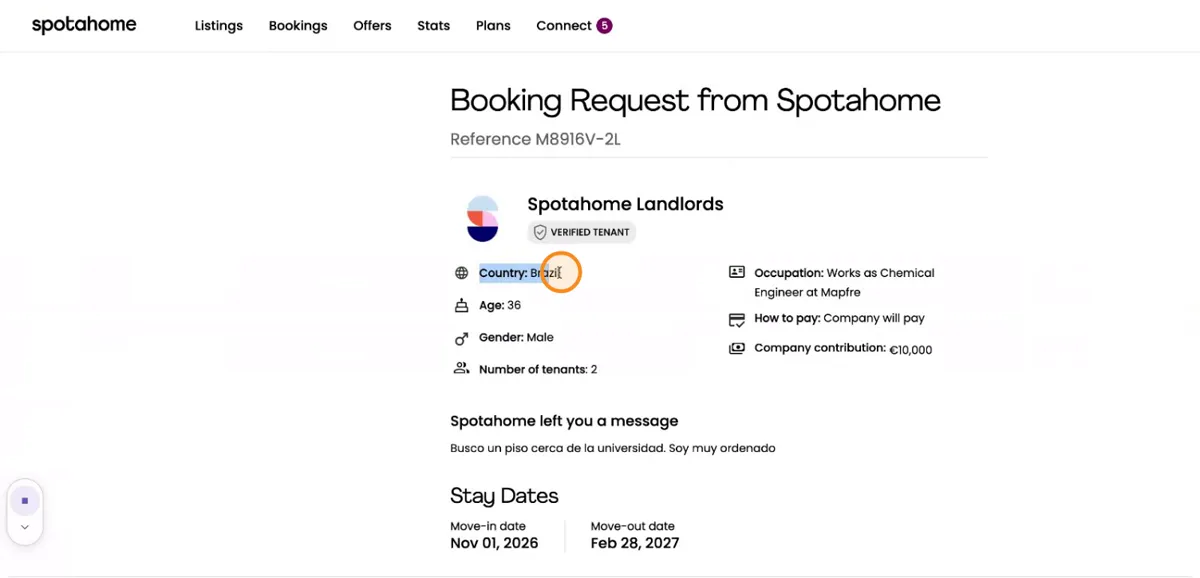
Go over all the key info about the tenant again.
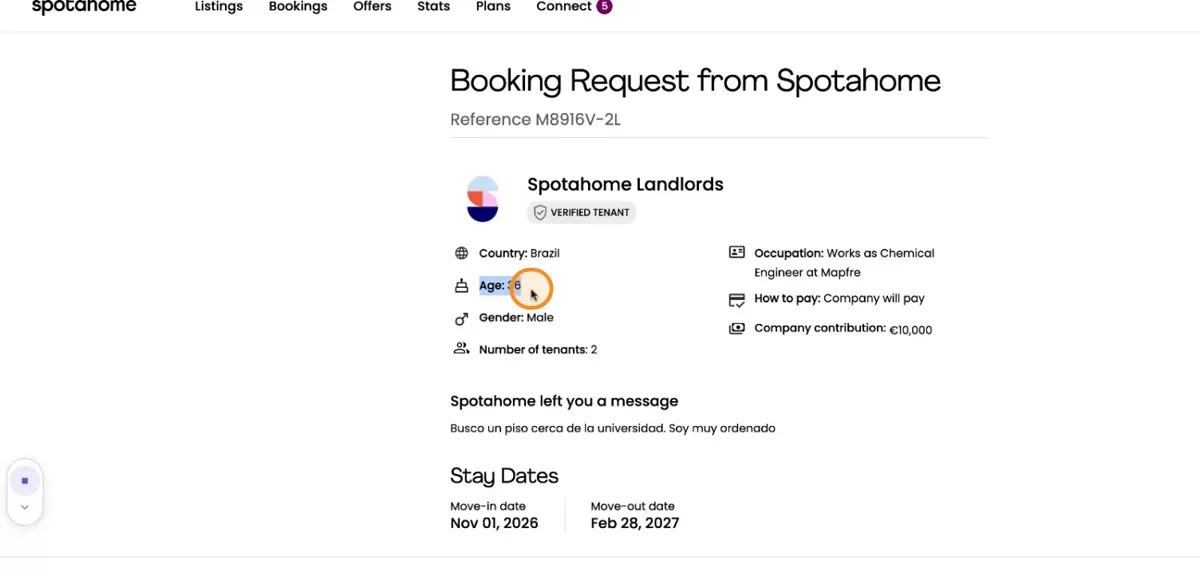
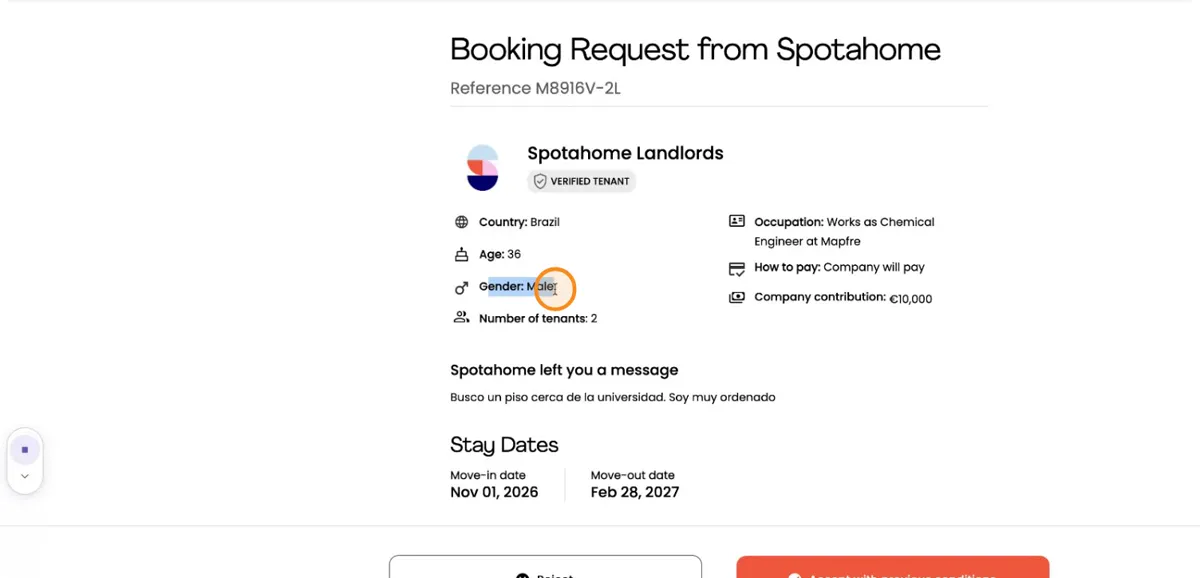
Double-check the dates of the stay once more, just to make sure they fit with your availability.
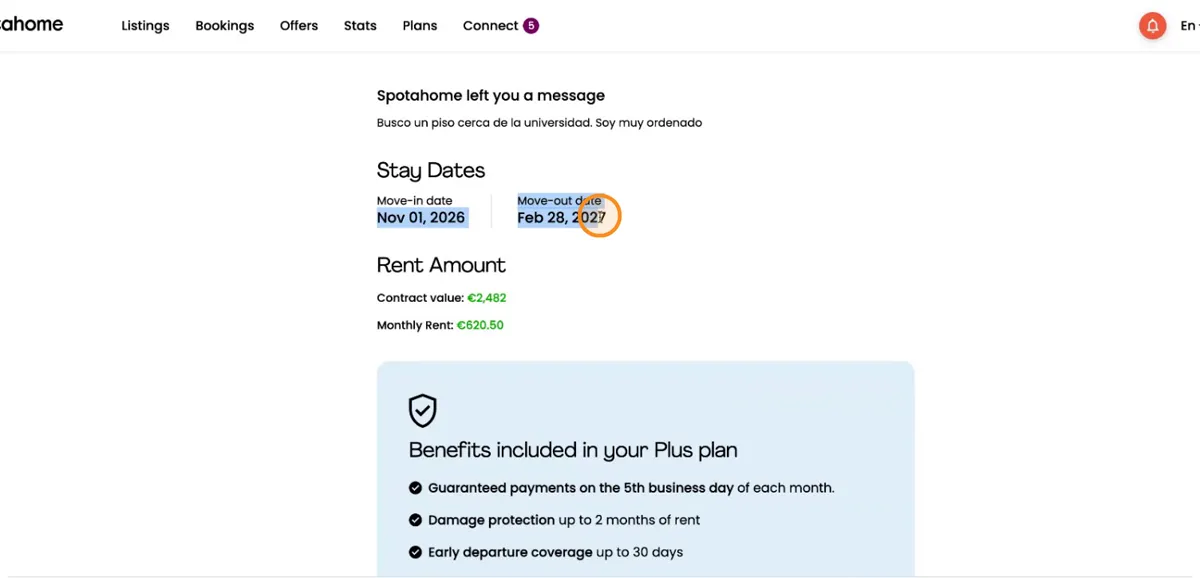
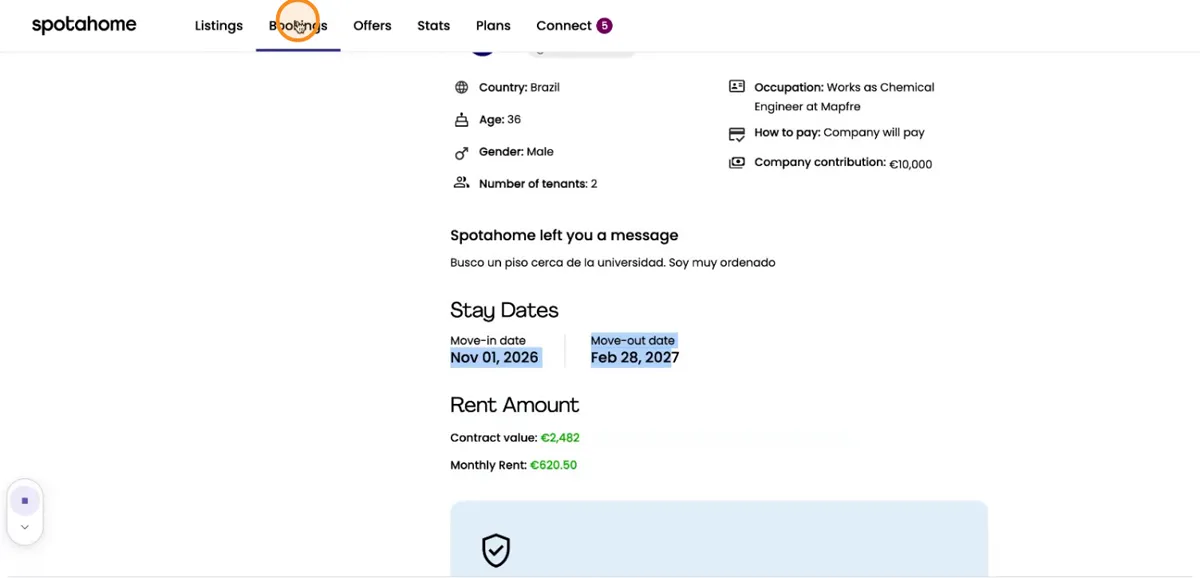
If everything looks good, you can accept the request straight away. If the booking doesn’t suit you or there’s an issue, you can also decline it from this screen.
Look at other booking examples and editing options
From the bookings section, you can view other booking requests you have to get a feel for different scenarios.
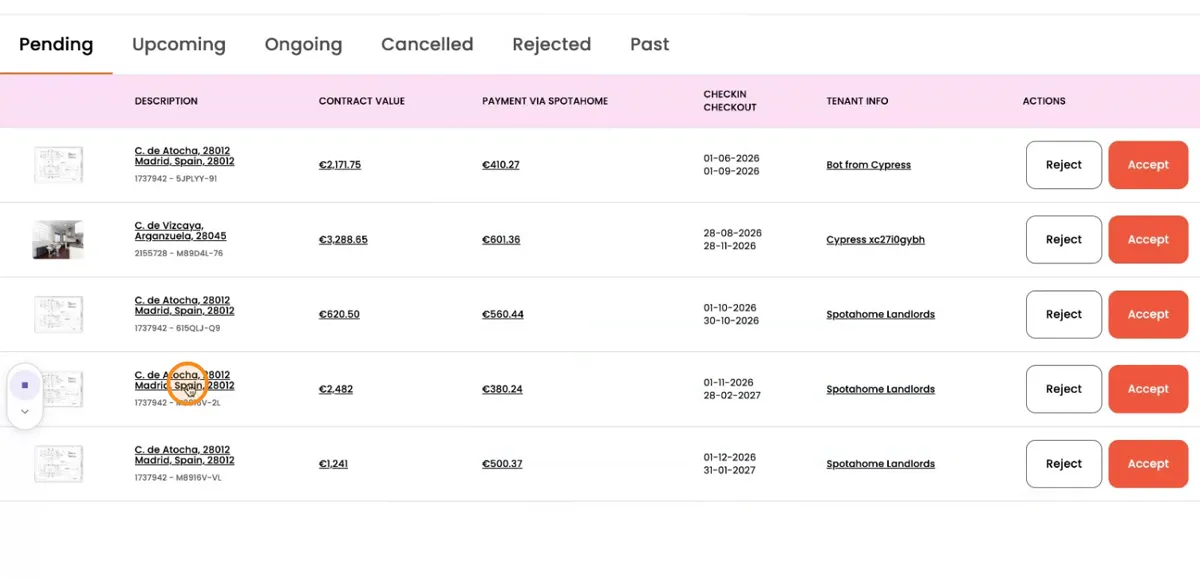
Browse through your other bookings and check out the different options.
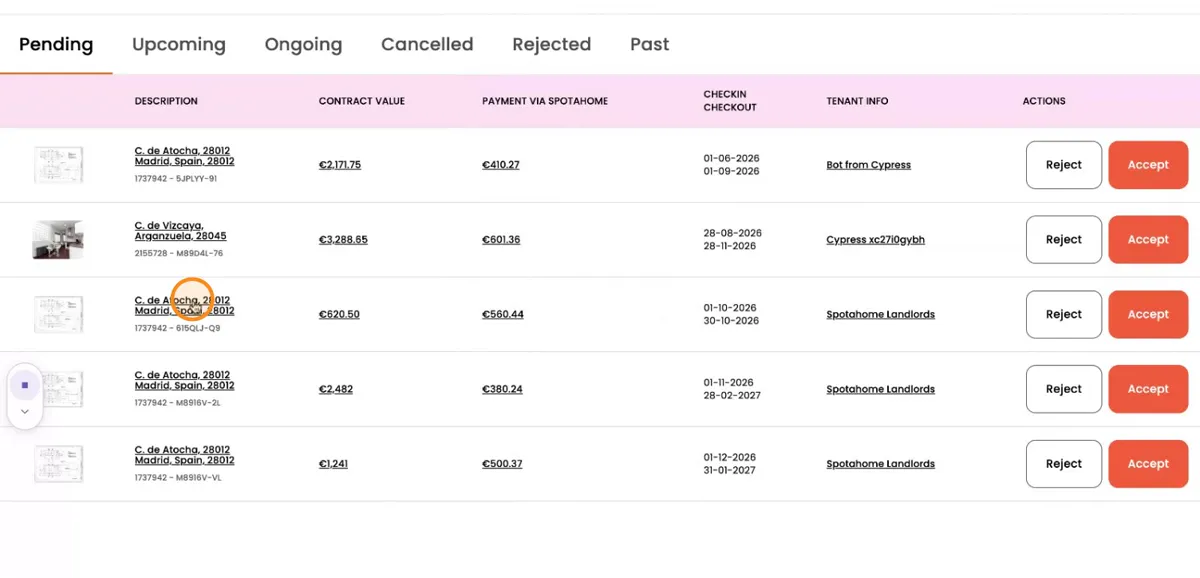
Have a look at other cases where, as well as accepting or declining, you can change some of the booking details.
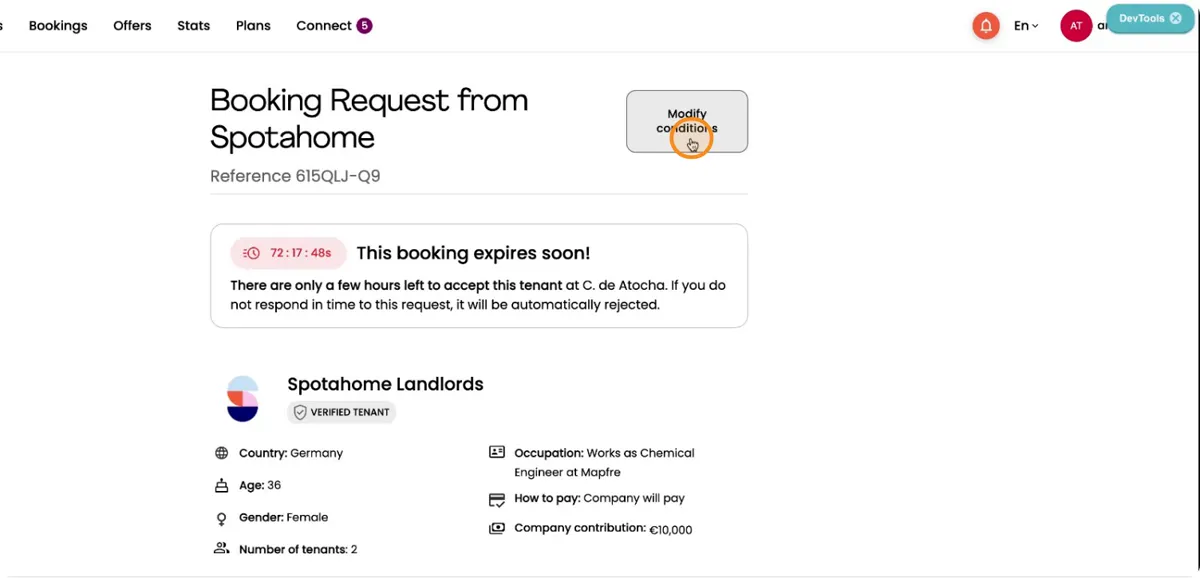
For instance, if the date doesn’t work or there’s something else that needs tweaking.
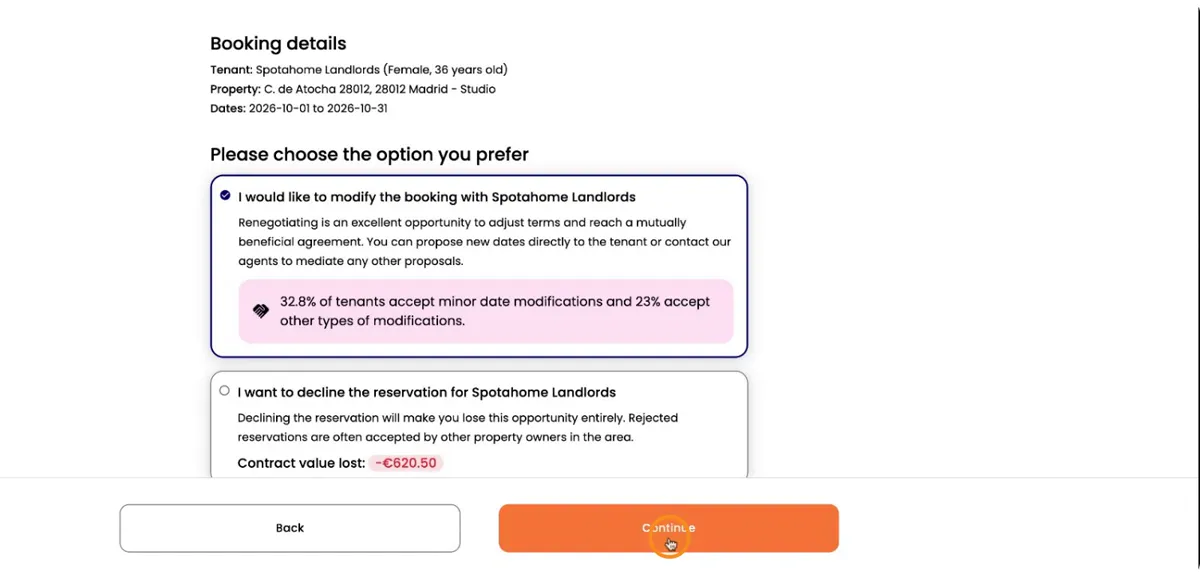
Suggest new dates to the tenant
If the original dates don’t work, use the modify booking option to suggest new ones. Spotahome will then email your proposed dates to the potential tenant.
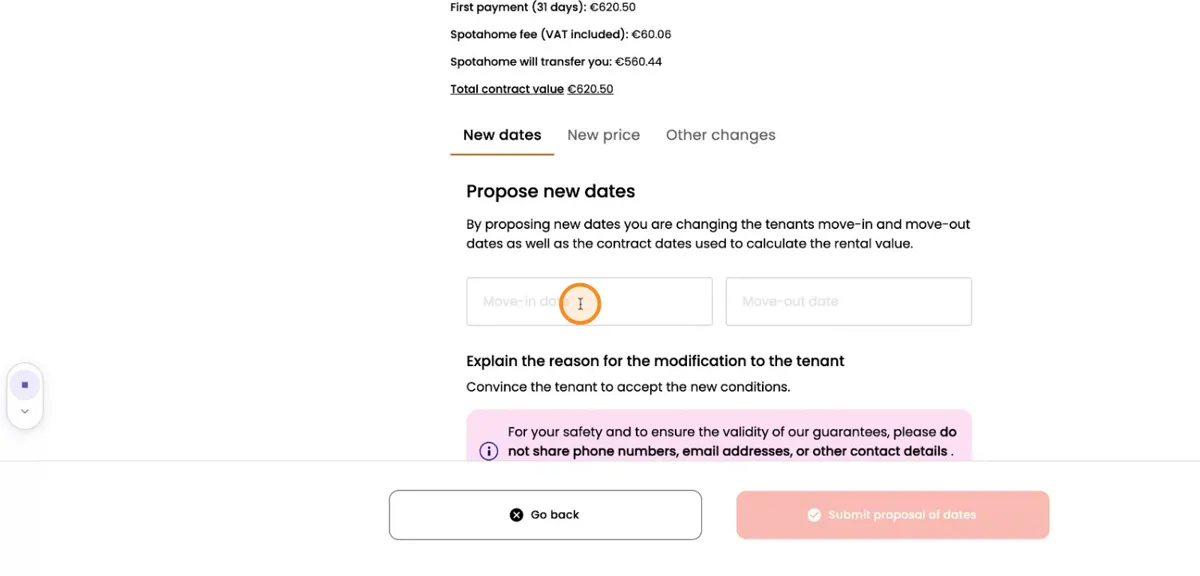
Click in the right field to edit the dates.
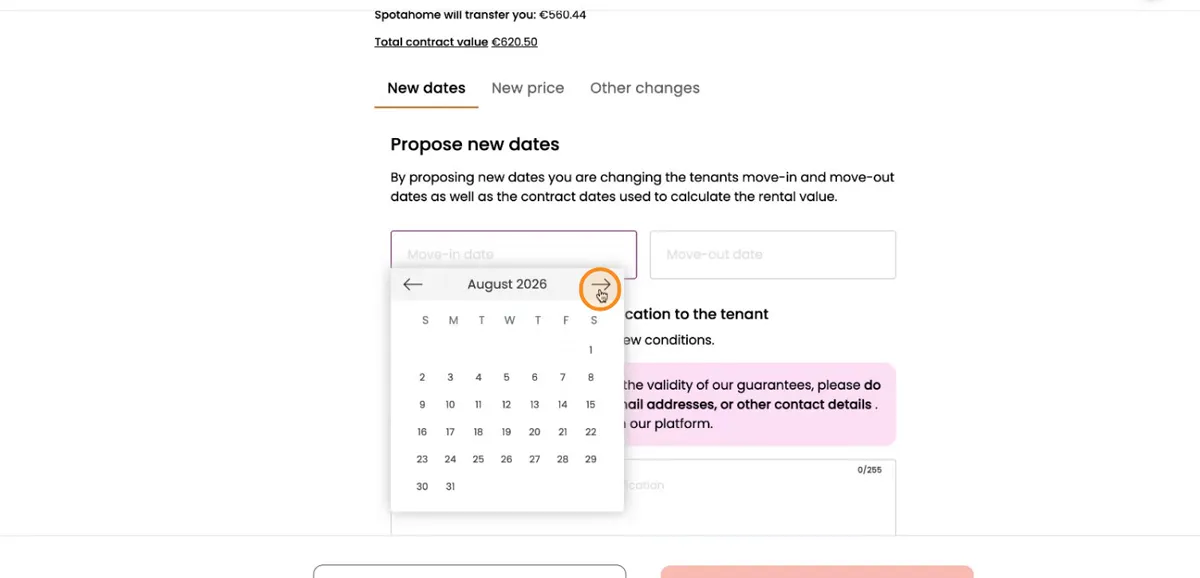
Click here to set the new dates.
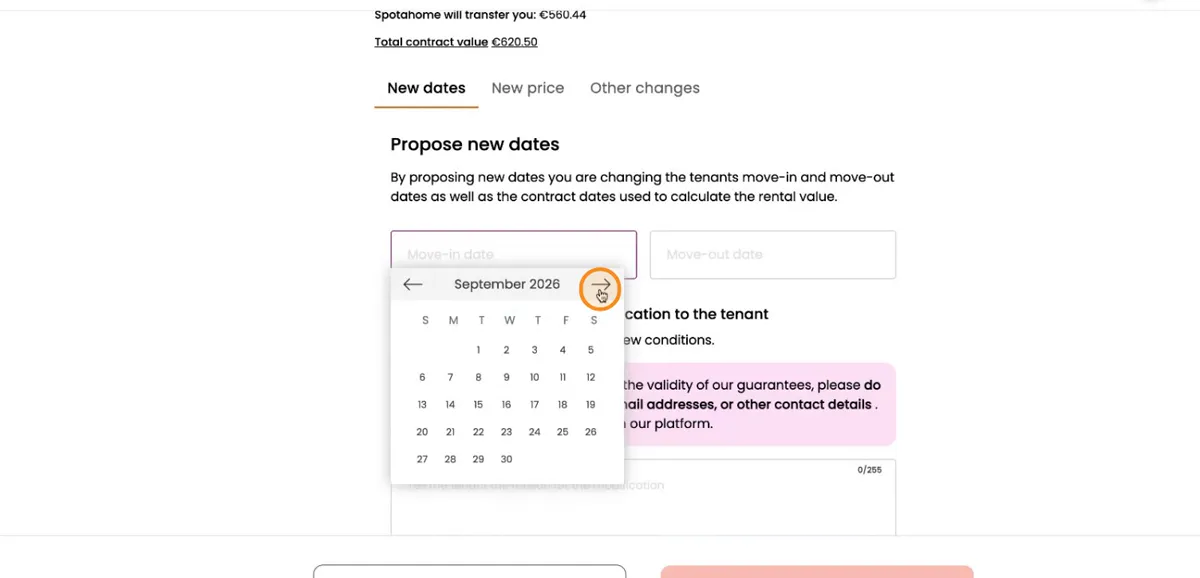
Put in the dates that better fit when your property is actually available.
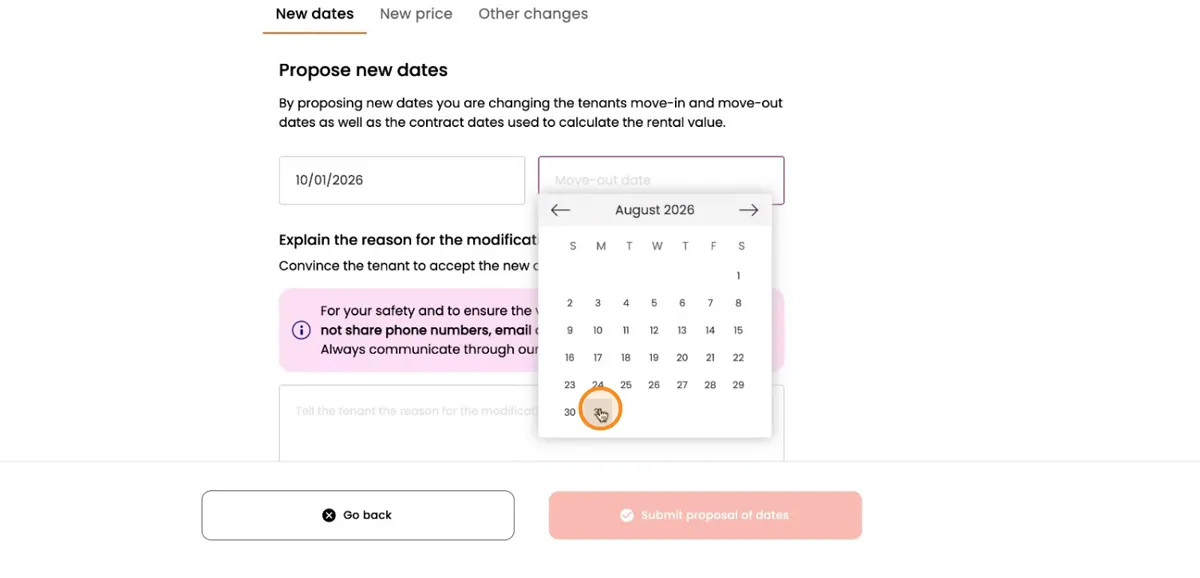
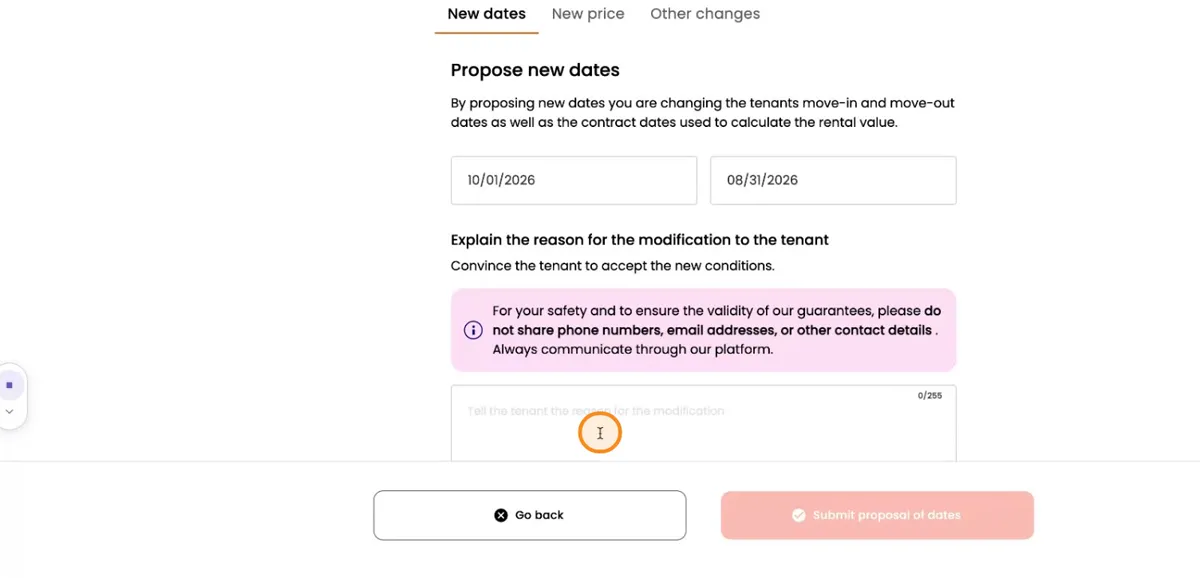
Use the text box provided to explain, clearly and simply, why you’re suggesting this change (for example, you might need to move the move-in date).
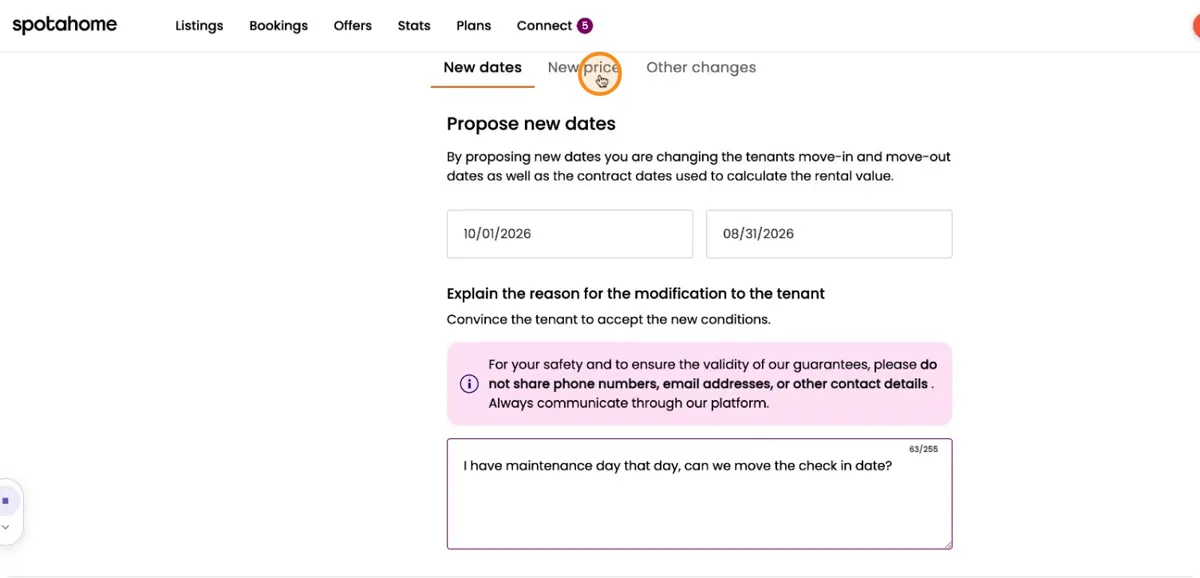
Send the new date proposal so the tenant can either accept or decline it.
For your safety and to ensure the validity of our guarantees, do not share phone numbers, email addresses or other contact details. Always communicate through the platform.
Change the price or other details before finalising the request
As well as the dates, you can also edit the price of the booking if the old amount is wrong or outdated, or make any other tweaks needed before closing the booking request.
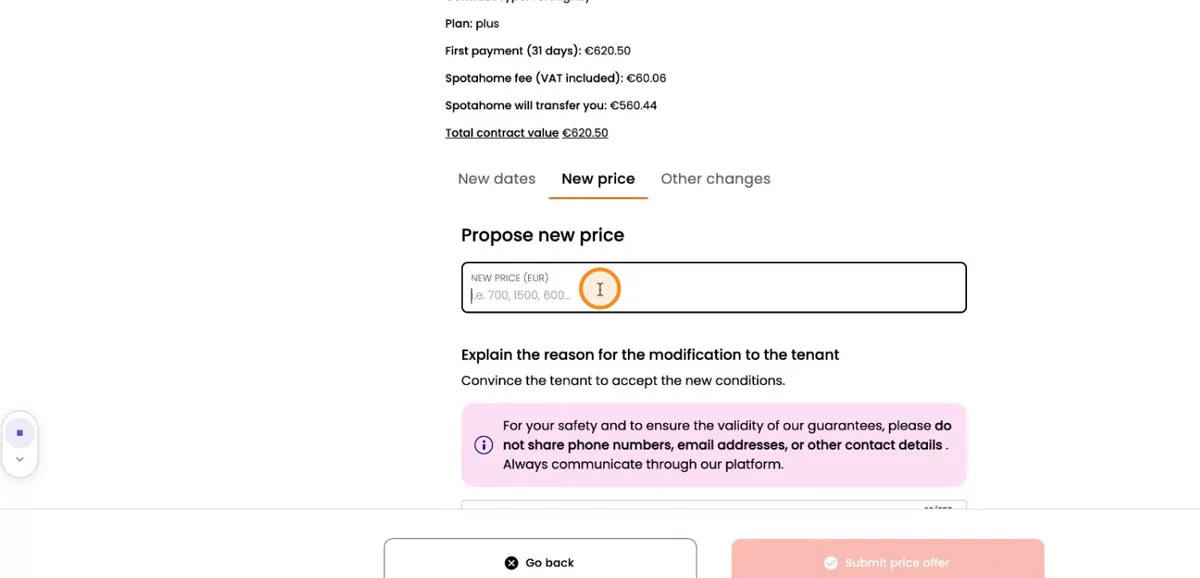
Go to the price or other editable fields.
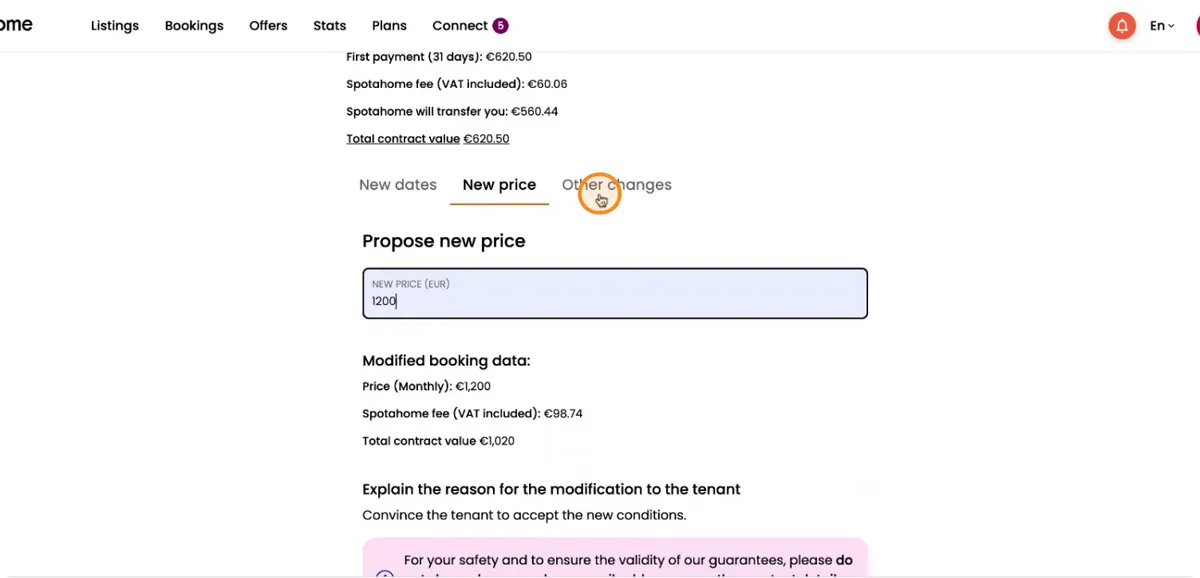
Make the necessary updates (for example, change the total price for the stay).
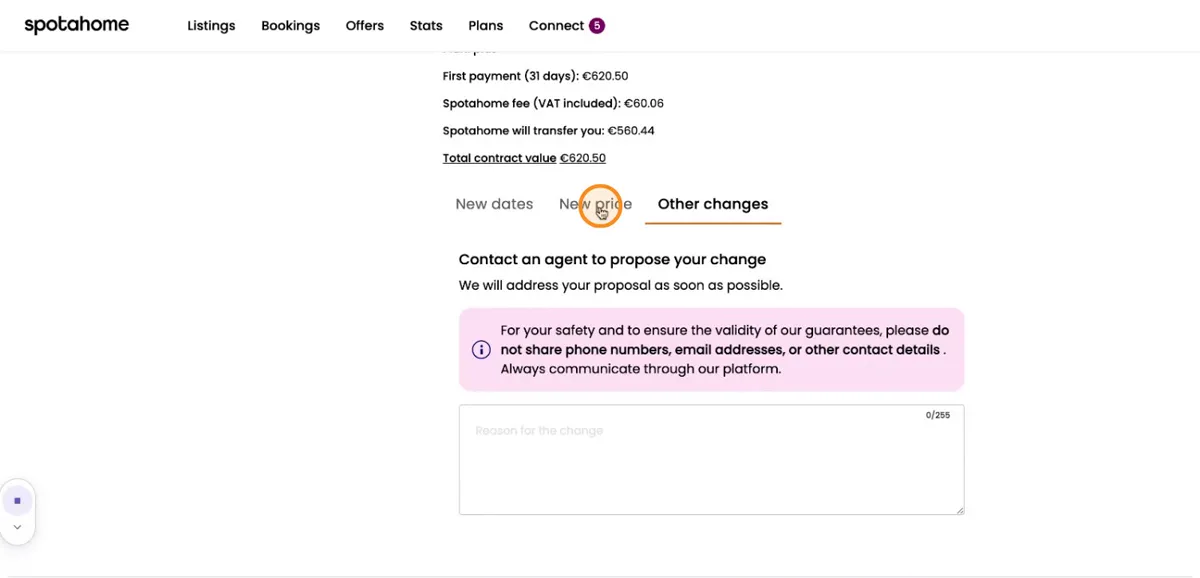
Confirm your changes and get ready to send the new proposal.
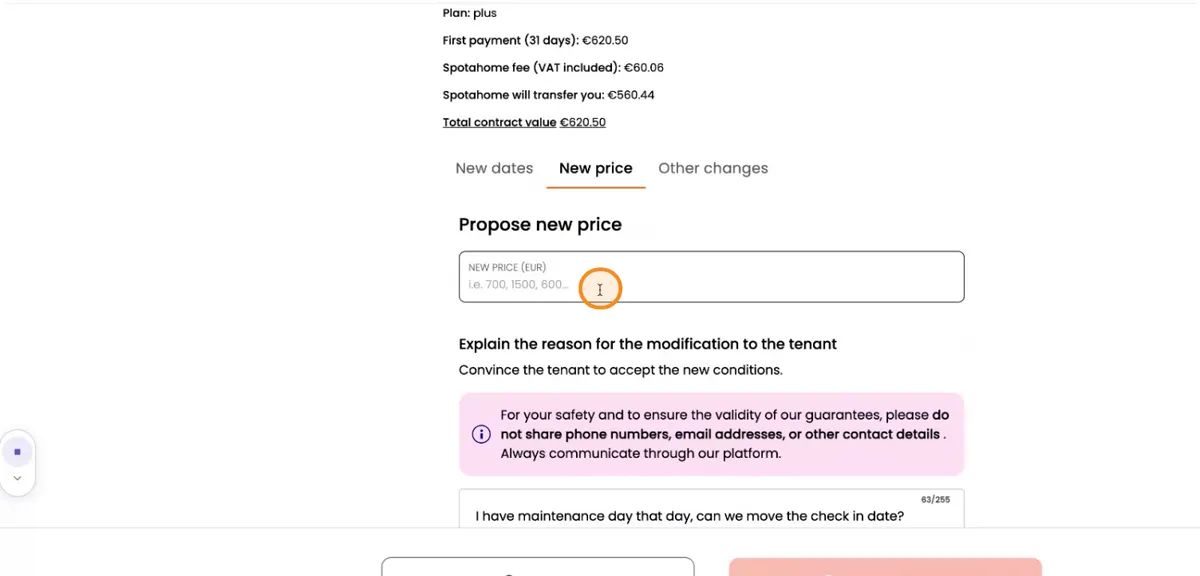
For example, update the price in the right field.
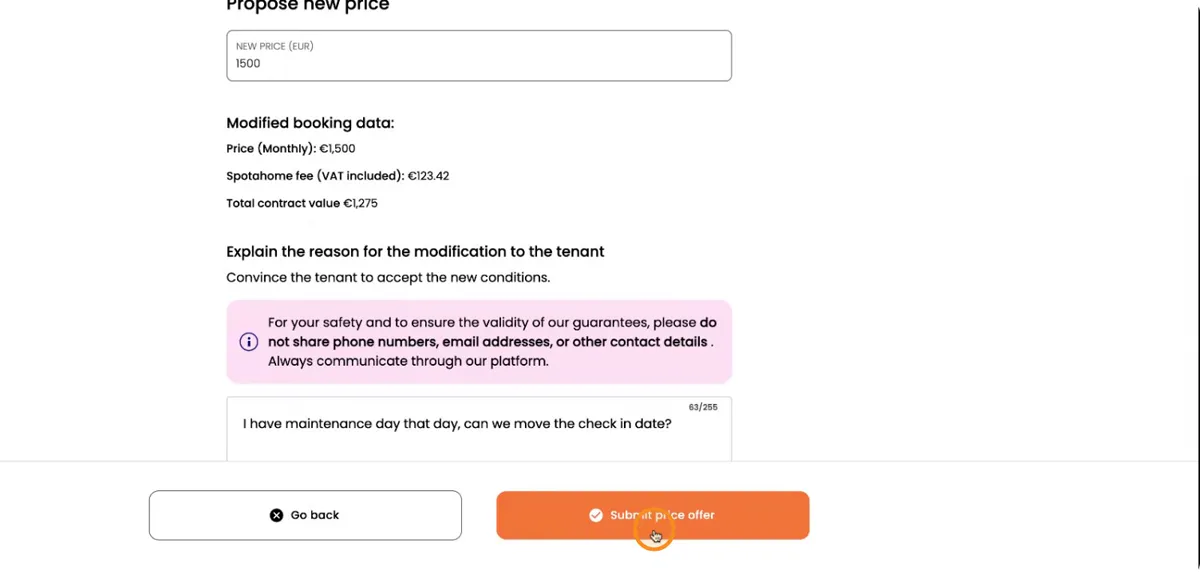
Type in the new price and ask the tenant to accept, sending them an email with the new booking proposal.
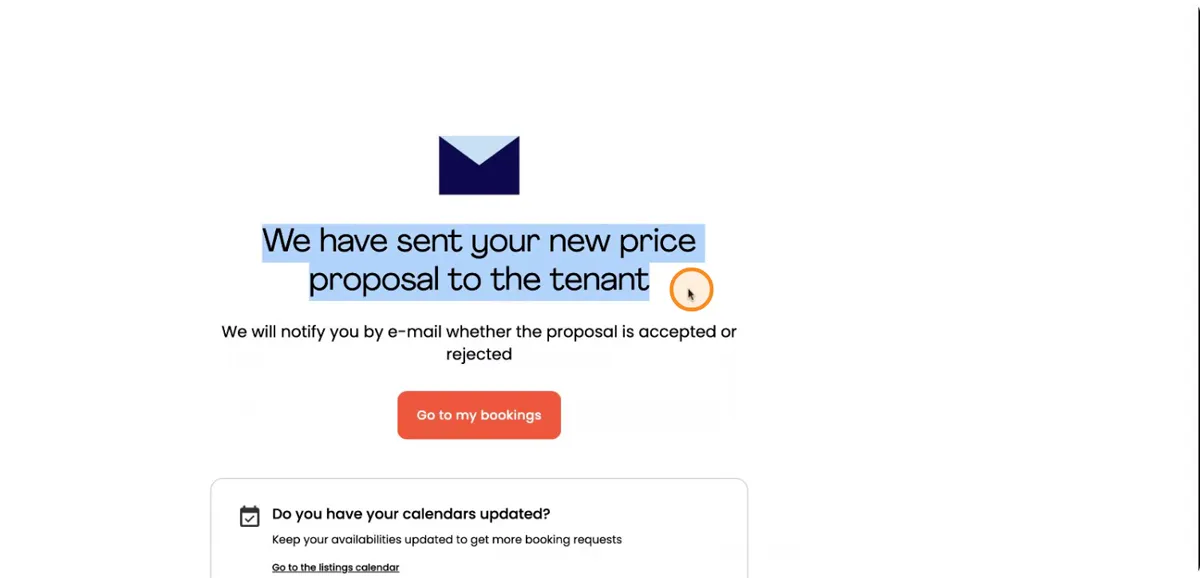
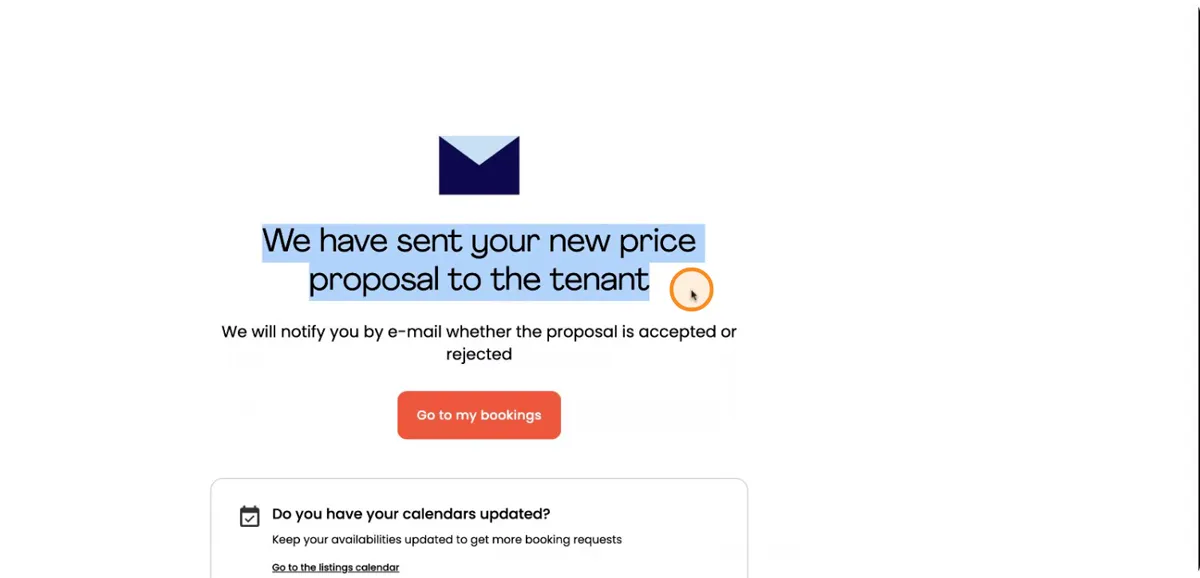
Make sure all the updated details are in your new proposal, which will go out by email.
It’s really important to always keep your calendar up to date with when your property is actually available. This avoids booking conflicts and helps you manage your booking requests more easily.
Got a request waiting?
Apply this walkthrough to it now.